

- Click ‘Browse’ on the webpage and select the shaky video on your device you want to stabilize.
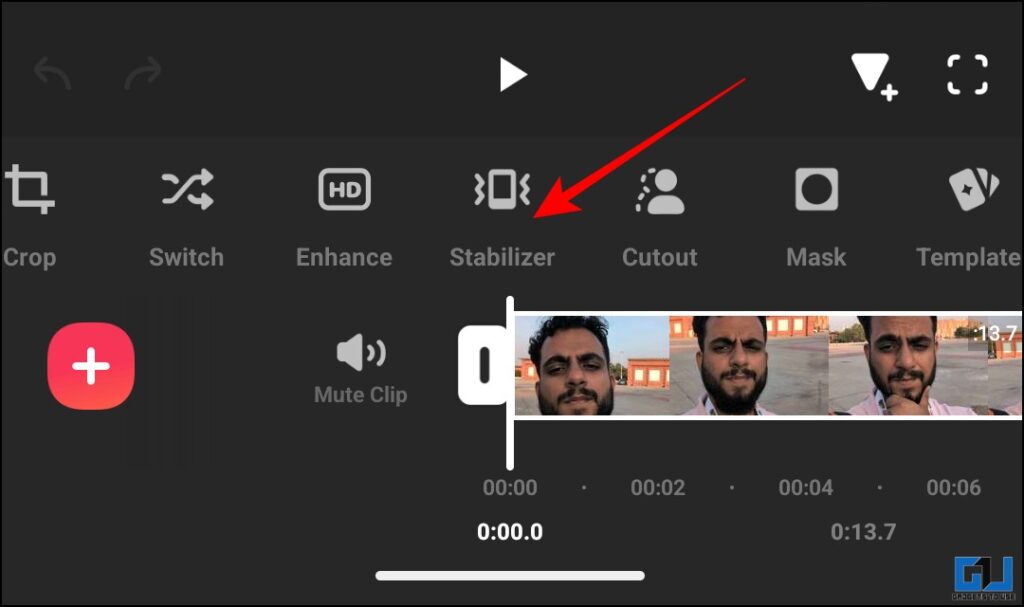
- Once you select the shaky video you want to stabilize, swipe through the multiple and tap on ‘Stabilizer’.
- If you also shoot a lot of videos on the go with your smartphone, they can come out shaky sometimes.
Shaky footage can ruin the video viewing experience even when the visuals are great. It instantly throws the viewer off and has disorienting effect. A normal smartphone footage can come out shaky even when they have OIS or EIS. Moreover, a gimbal, tripod or other similar equipment might not be accessible to everyone. This doesn’t mean that the shaky footage from your phone cannot be fixed. We tested 3 ways that you can use to fix the shaky footage from your phone on your phone itself.
Fixing Shaky Videos on Any Phone
Since we’ll be fixing the shaky footage on your smartphone, we’ll be using apps such as Google Photos, InShot and also an online tool such as Stabilizo.
Google Photos
The Google Photos app comes pre-installed on almost all Android smartphones and is also available on iOS. It has introduced many built-in AI features. Thus, many smartphone brands have begun using Google Photos as their primary media manager instead of a dedicated gallery app. One of those features is the ‘Stabilize’ feature.
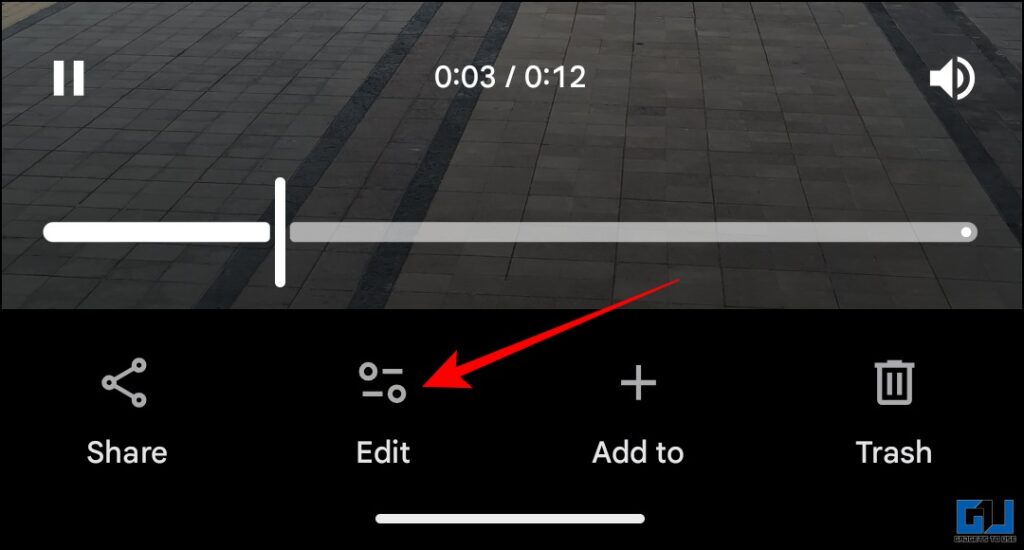
1. Open the shaky video you want to stabilize in the Google Photos app.Tap on ‘Edit’.

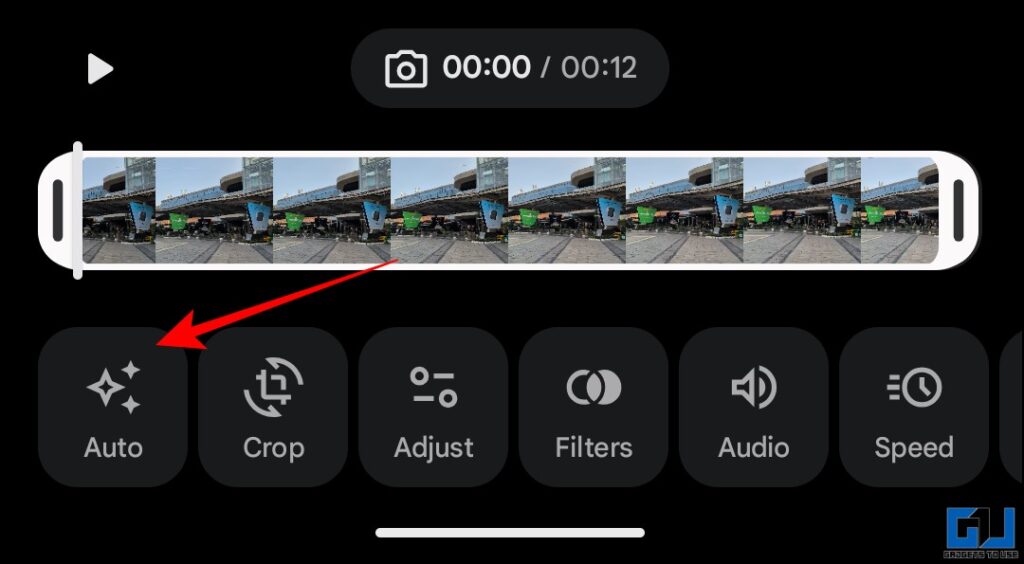
2. Now, in the edit options below, tap on ‘Auto’.

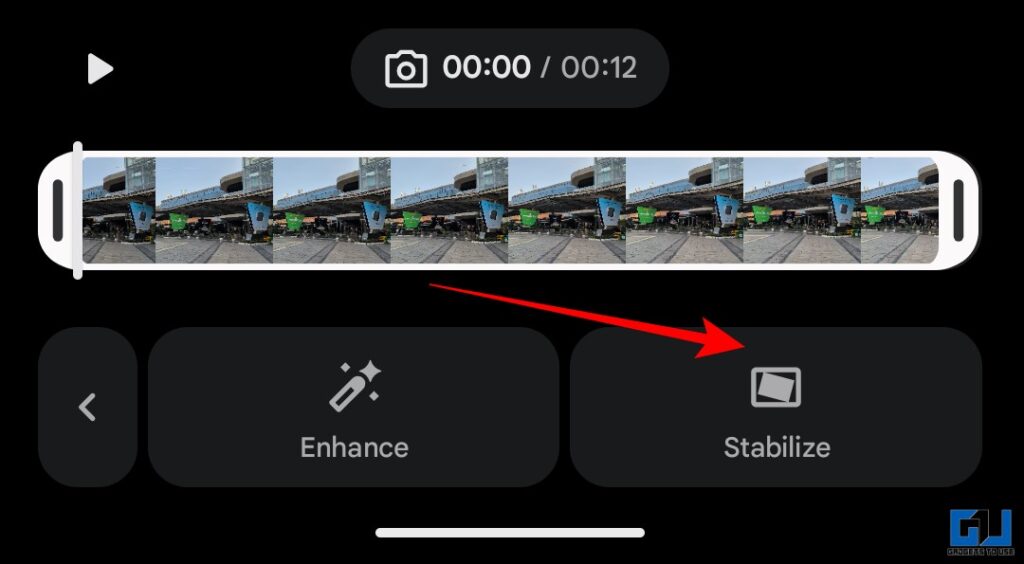
3. Here, tap ‘Stabilize’.
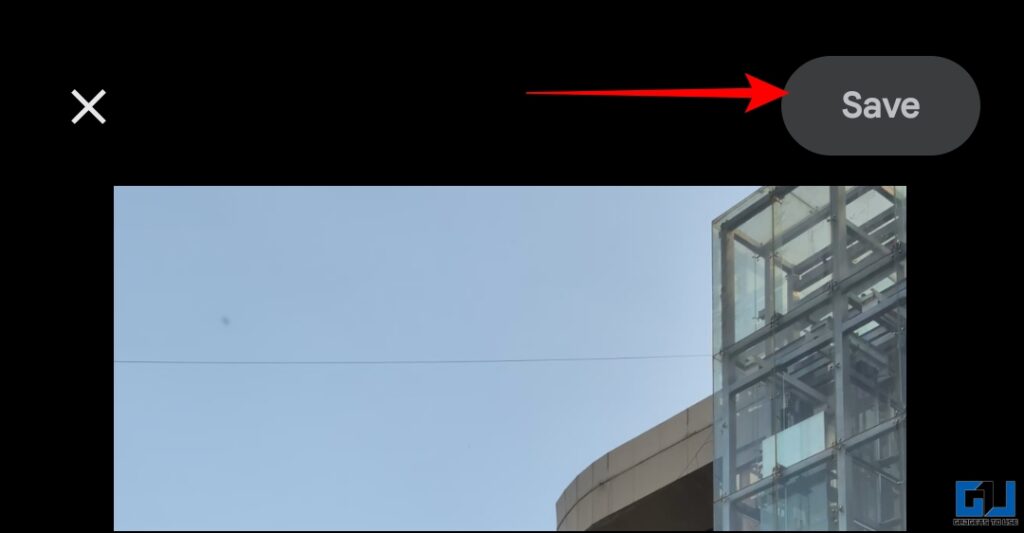
4. After some processing, the video will be stabilized. Now just hit ‘Save’ and the stabilized video will be saved as a new file.

InShot
If you want more control and stability options, you can use the InShot app. This is a well-known mobile video editing app with tons of options. One of those is the stabilizer tool.
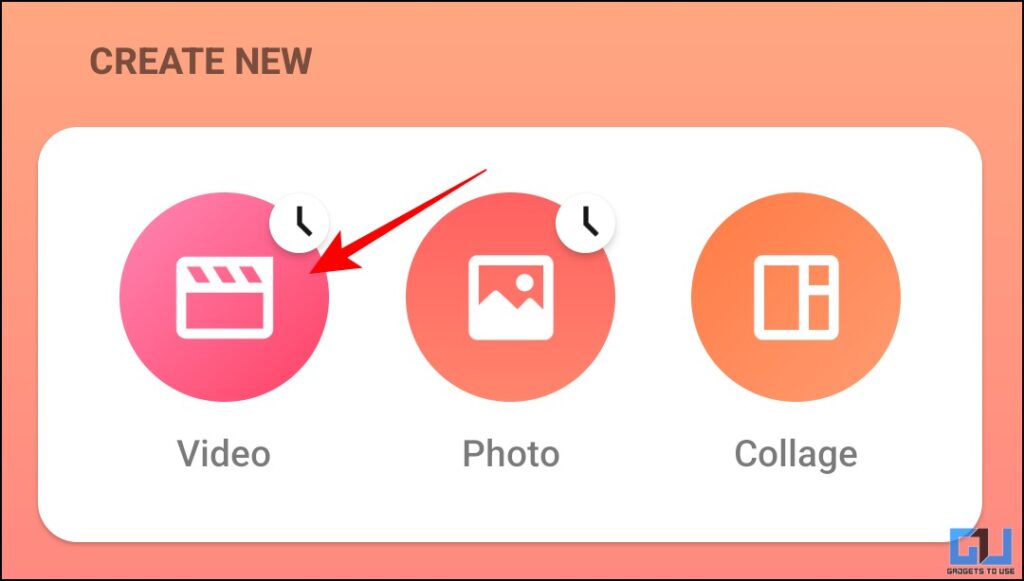
1. Open the InShot app and under ‘create new’ tap ‘Video’.

2. Once you select the shaky video you want to stabilize, swipe through the multiple and tap on ‘Stabilizer’.

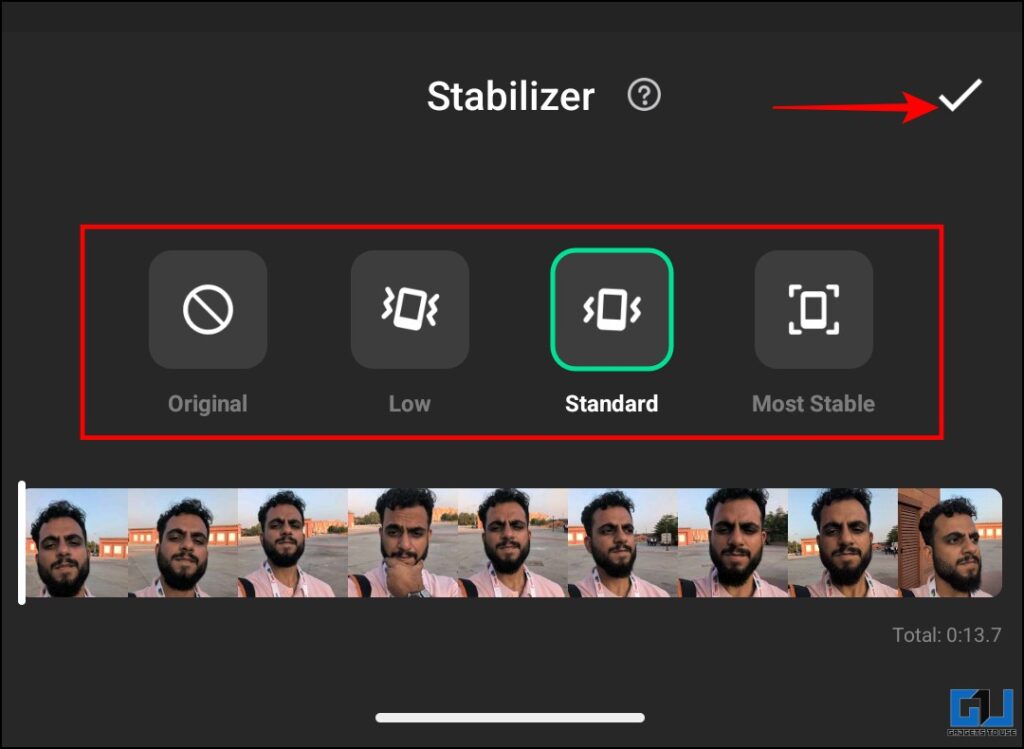
3. Here, you will get three levels of stabilization to choose from. See what works for you and then hit the tick mark.

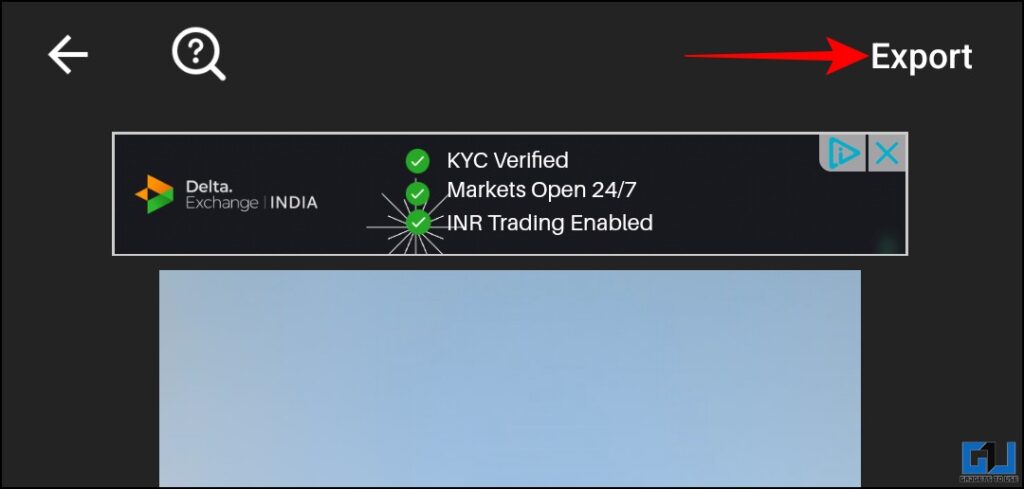
4. Now, simply just export the video in your desired quality from the top right corner. Also, you can remove the watermark if you want. Just hit the cross on the watermark and watch the full ad. Post that the watermark will be removed.

Stabilizo
If you don’t want to download any app, you can just head to Stabilizo. This is an online tool that you can use to stabilize your videos.
1. Click ‘Browse’ on the webpage and select the shaky video on your device you want to stabilize. Then click ‘Upload’.

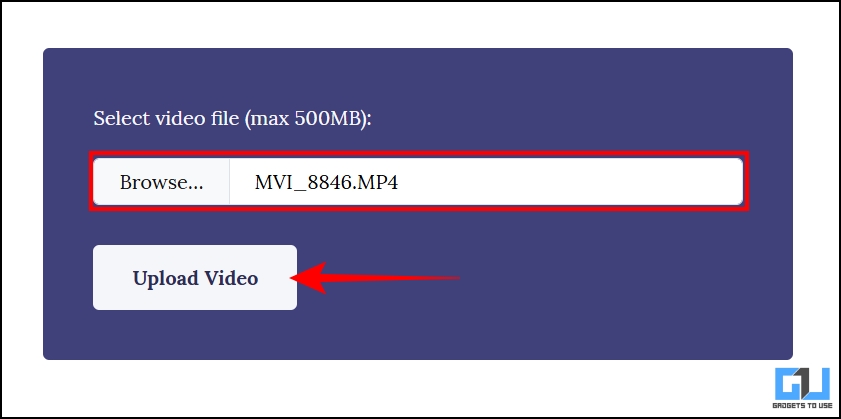
2. The video will get uploaded. Once the video is processed, you will be able to download the video.


Although there won’t be many control options, the video will get somewhat stabilize. Also, keep in mind that the maximum file size can be up to 500 MB.
Apart from these methods, try using these measures while shooting to ensure somewhat stable footage:
- Shoot in 60fps or higher if your phone supports that
- Hold the phone with both hands and keep your elbows close to your body while shooting the video
- A tripod might not be available everywhere, so try to take support from any nearby object
- If you’re taking a tracking shot, then walk on your toes and keep your pace slow
FAQs
Q. Why is my video slightly cropped after stabilization?
The crop is unavoidable as the tools adjust the frame to counter the movement.
Q. Can these tools work on very shaky videos?
Extreme shake is almost impossible to fix. Also, the video starts warping and looks unnatural.
Wrapping Up
If you also shoot a lot of videos on the go with your smartphone, they can come out shaky sometimes. This can ruin the footage with otherwise good visuals. You can use the methods given above and try and fix that footage. They might not work on all videos, depending upon the camera movement and level of shake. You can also avoid shooting shaky footage for the next time by utilizing some measures listed above.
You may also like to read:
Have any questions related to our how-to guides, or anything in the world of technology? Check out our new GadgetsToUse AI Chatbot for free, powered by ChatGPT.
You can also follow us for instant tech news at Google News or for tips and tricks, smartphones & gadgets reviews, join the GadgetsToUse Telegram Group, or subscribe to the GadgetsToUse Youtube Channel for the latest review videos.
⬇️ GadgetsToUse Site Search ⬇️
You can find anything on our website, inlcuding tech how to, solution or reviews using google site search box below.
Was this article helpful?
YesNo