- Now, if you don’t have the latest Windows 10 Version 22H2 update, you need to update your Windows, then you can move to further steps, but if you do have the latest Windows 22H2 version installed in your pc or laptop, you can continue without any issue.
- As I mentioned earlier, to enrol in the Extended Security Updates (ESU), your Windows 10 version should be 22H2 and if you don’t know how to check your Windows version, you can follow below mentioned steps.
- If your PC or laptop does not meet the hardware requirements of Windows 11, then the Extended Security Updates (ESU) program is the best way to provide security to your systems.
As of October 14, 2025, Microsoft has officially ended support for Windows 10. This means if you are still using Windows 10, your PC or laptop is no longer protected by regular security updates, which means no bug fixes, no feature updates, and, in fact, no technical support was provided by them.
To avoid system vulnerabilities, Microsoft introduced the Extended Security Updates (ESU) program. This program is specifically designed for Windows 10 users who are not ready to move to Windows 11, so that they can get critical and important Security updates for a limited time period.
These updates will not include any feature updates or any technical support; they only include updates defined by the Microsoft Security Response Centre (MSRC) for devices running Windows 10. Before enrollment in this program, you have to follow some basic guidelines. Your Windows 10 version should be 22H2, which is the latest and final release of Windows 10.
Ways to Enrol in Extended Security Updates (ESU) Program
There are three ways to enrol in the Extended Security Updates (ESU) program:
- At no additional cost if you are syncing your PC Settings.
- Redeem 1,000 Microsoft Rewards points.
- One-time purchase of $30 USD or local currency equivalent plus applicable tax.
This article focuses particularly on how to obtain Extended Security Updates for free. We will also discuss the pros and cons of each method to understand which solution is best for you.
Steps to enrol in the Extended Security Updates (ESU) program
As I mentioned earlier, to enrol in the Extended Security Updates (ESU), your Windows 10 version should be 22H2 and if you don’t know how to check your Windows version, you can follow below mentioned steps.
How to check your Windows version
1. Open Settings > Click on “System”.
2. Scroll down and click on “About” > Scroll down to the “Windows specifications” section to find details about your Windows 10 version.
Now, if you don’t have the latest Windows 10 Version 22H2 update, you need to update your Windows, then you can move to further steps, but if you do have the latest Windows 22H2 version installed in your pc or laptop, you can continue without any issue.
Register For Extended Security Updates
After completing all the steps above, you’re now ready to enrol in Extended Security Updates (ESU). Now, just follow the steps given below
1. Open Settings.
2. Go to “Updates and Security”.
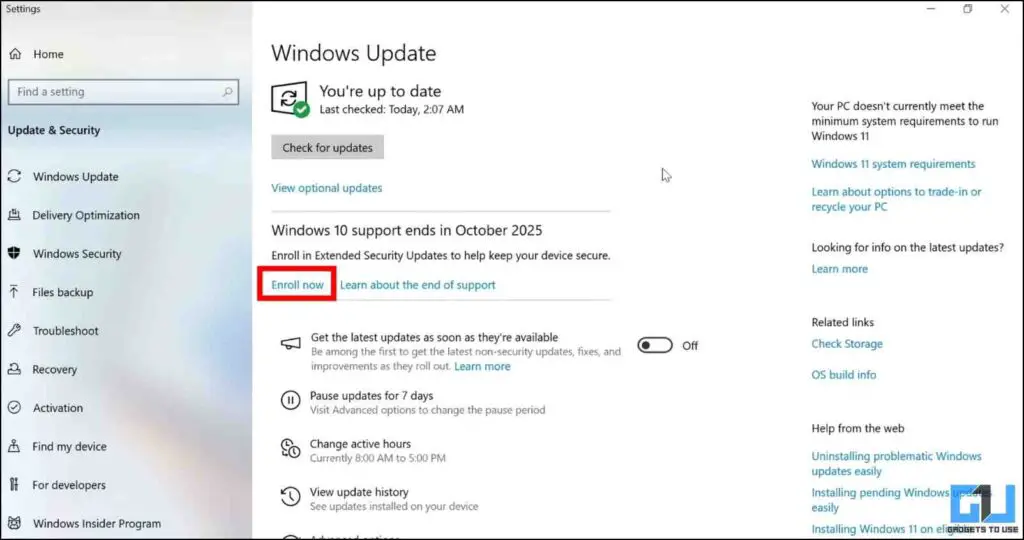
3. Select the “Windows Updates” option.
4. There, you can see “Enrol now” option.
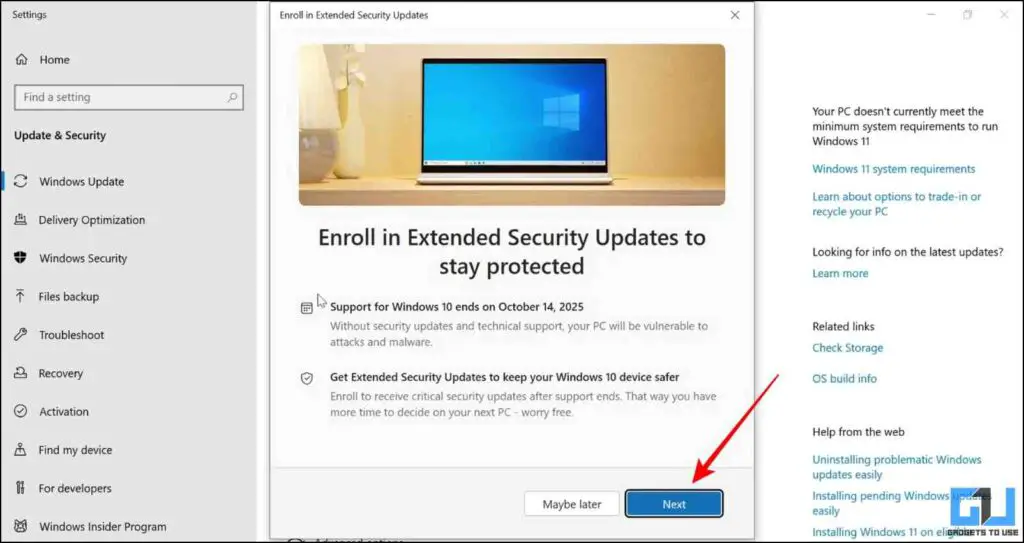
5. Click on “Next”.
6. Enter your PIN and Login credentials and click on “Sign in”.
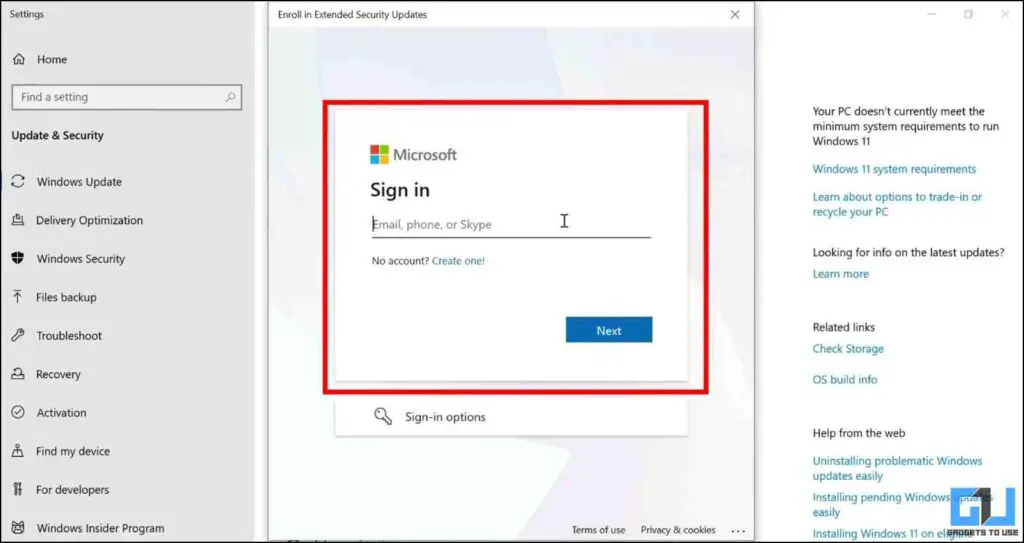
Once you have followed these steps, there are two possible situations you may see.
1. If you already have a backup of your Windows settings, the free enrollment option will appear directly. Simply enroll and continue receiving system security updates for free.
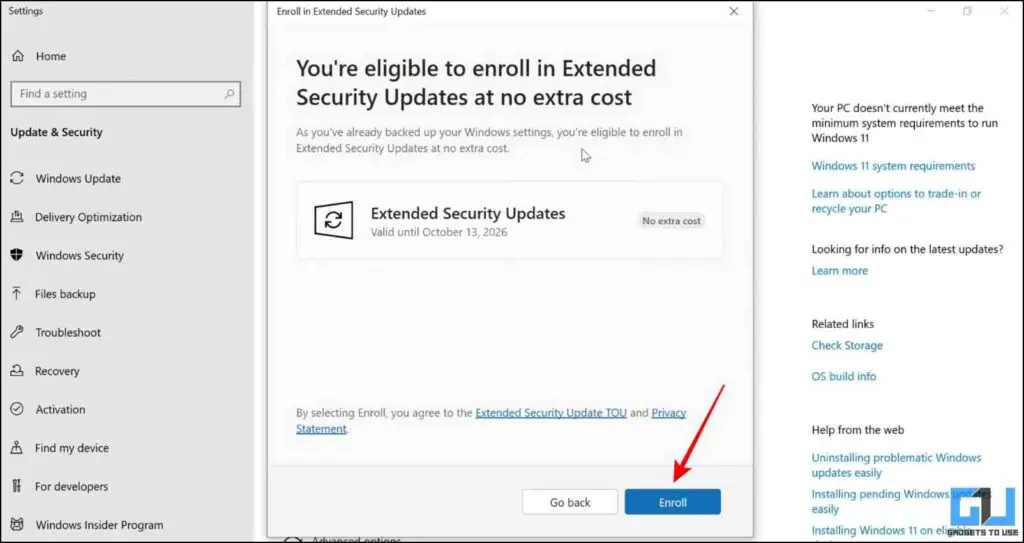
Once you are done with the following steps, you can see this in your Windows Update option.
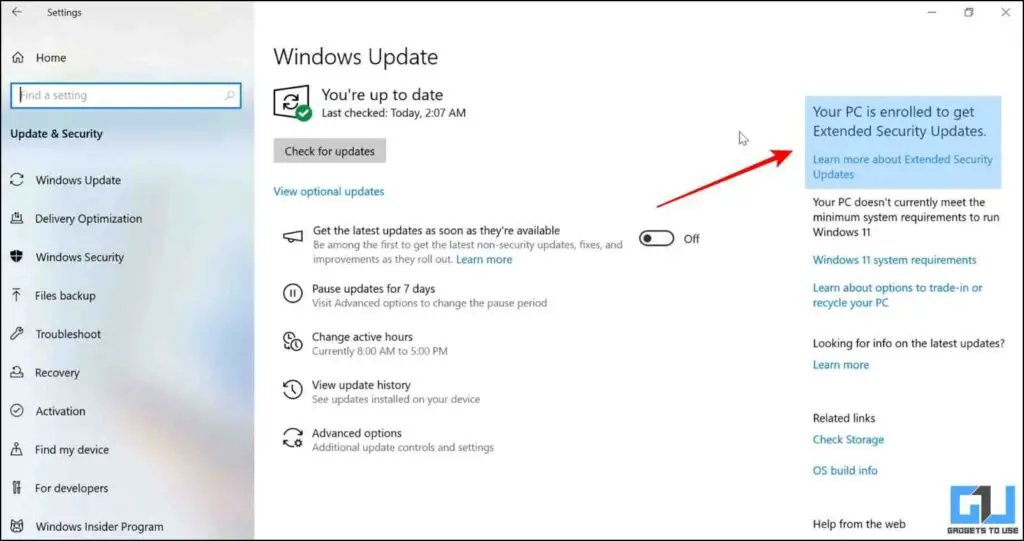
2. If your system doesn’t match the minimum requirements, you will have to choose either “Redeem 1,000 Microsoft Rewards points or a One-time purchase of $30 USD or local currency equivalent, plus applicable tax” option.
Is Windows 10 Extended Support Worth It?
If your PC or laptop does not meet the hardware requirements of Windows 11, then the Extended Security Updates (ESU) program is the best way to provide security to your systems. If you are someone who does not want an OS change for personal preferences, then using extended support is the most convenient way to stay on Windows 10, while having the benefit of the latest security patches.
But if you rely on your Windows machine for sensitive tasks such as banking, crypto trading, investment tracking, or if your daily work involves handling confidential data, then it’s not recommended to stay on Windows 10. In such cases, you should upgrade to Windows 11 to ensure that all other programs on your system remain compatible with your OS with their respective security patches.
FAQs
Q. How to enrol in Extended Security Updates (ESU)?
Open Settings > Click on Update & Security > Select Windows Update from the left sidebar > Look for the Enrol now option on the screen to register for Extended Security Updates.
Q. What is Extended Security Updates in Windows 10?
Extended Security Update (ESU) is a program offered by Microsoft for Windows 10 users so that they can get critical security updates for a temporary time period.
Wrapping Up
Windows 10 may still work, but without security updates, it’s no longer safe. The Extended Security Updates (ESU) program gives you a temporary way to stay protected if you’re not ready to move to Windows 11 yet. Just remember, Extended Security Updates are not a permanent solution and come with a deadline. If you’re concerned about your data security, either upgrade to Windows 11 or consider replacing your PC or Laptop if it doesn’t meet the minimum requirements.
You may also like to read:
Have any questions related to our how-to guides, or anything in the world of technology? Check out our new GadgetsToUse AI Chatbot for free, powered by ChatGPT.
You can also follow us for instant tech news at Google News or for tips and tricks, smartphones & gadgets reviews, join the GadgetsToUse Telegram Group, or subscribe to the GadgetsToUse Youtube Channel for the latest review videos.
Was this article helpful?
YesNo