- While posting a picture in a community post, there are some limits on the image you can upload.
- ‘Community posts’ as a feature has been there for a long time, and in recent times, it has been made accessible, as there is no particular subscriber count.
- But in reality, it seems that YouTube prefers images to be somewhere in the middle of the range.
Community posts make YouTube feel like a conventional social media platform. It’s because it allows creators to share updates with photos and text, engage with their audience through polls, and more. Among these, one issue has been observed while posting pictures. That is, even when the photos fall within the 2:5 to 5:2 aspect ratio range, YouTube shows an error. This is frustrating because, despite meeting the technical requirements, the image cannot be uploaded, which pushes creators to stick to more common ratios such as 1:1 or 16:9. In this article, we’ll explore the limitations and try some fixes.
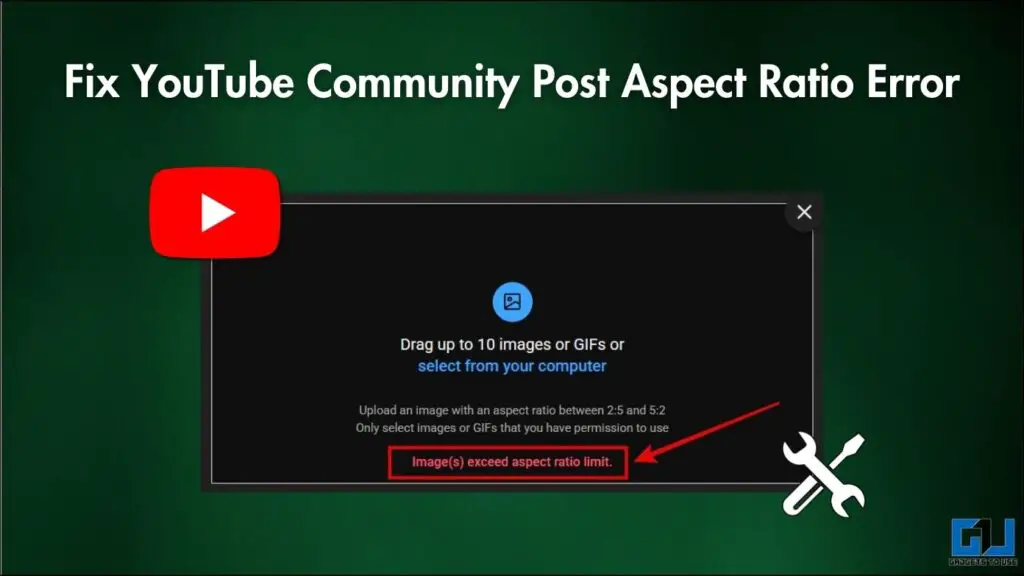
While posting a picture in a community post, there are some limits on the image you can upload. The image format should be JPG or PNG. The maximum file size should be under 16 MB. Another thing YouTube clearly states is that the aspect ratio should be between 2:5 and 5:2. The problem occurs when the aspect ratio of an image is exactly 2:5 or 5:2 or even under that limit. It shows an error that says, “Image(s) exceed aspect ratio limit.” This means that even if you meet these limits, you won’t be guaranteed a successful upload.
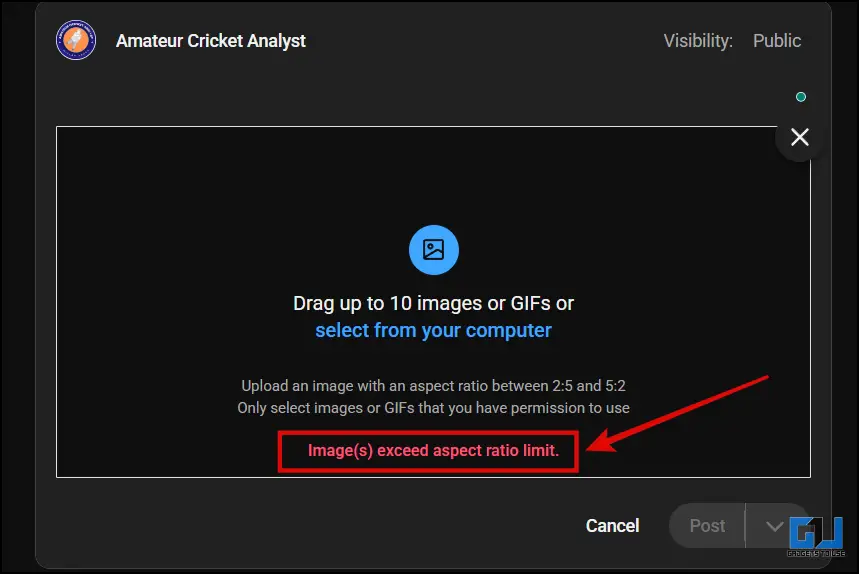
Ideally, 2:5 to 5:2 is a good range for uploading tall, wide, or banner-like images. But in reality, it seems that YouTube prefers images to be somewhere in the middle of the range. I tried to limit the image’s resolution on the longer side to 1200. This sometimes works, but in most cases, there seems to be an issue with YouTube’s backend validation.
After you upload an image, the YouTube algorithm does not take it as is. It reads the pixel dimensions and metadata. It also applies internal rounding, so what you upload and what it receives can differ slightly in pixel values. The slight difference in pixel values affects the image’s true aspect ratio. This sometimes leads to the image being invalidated and, hence, rejected. Let’s see some workarounds now.
Using Online Resize Tools
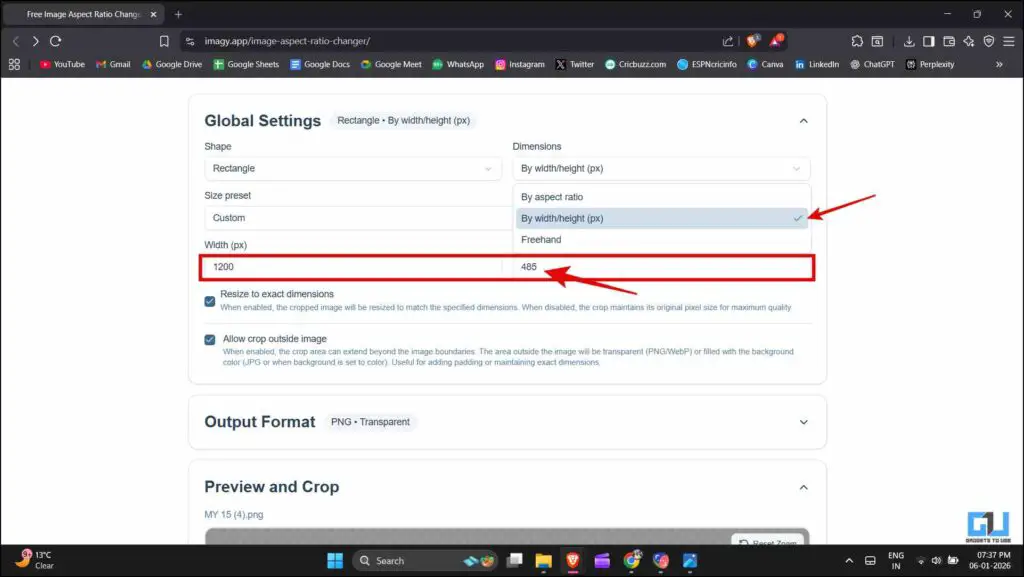
As mentioned above, you can adjust the resolution of the image by resizing it through online tools such as Imagy.App.
1. Upload the image you want to adjust.

2. In the Global Setting, choose ‘By width/height (px)’ in the Dimensions pull-down menu. Now, keeping the width 1200, ensure that the height is more than 480 so that it’s under 5:2.
3. Adjust the image frame and hit download.
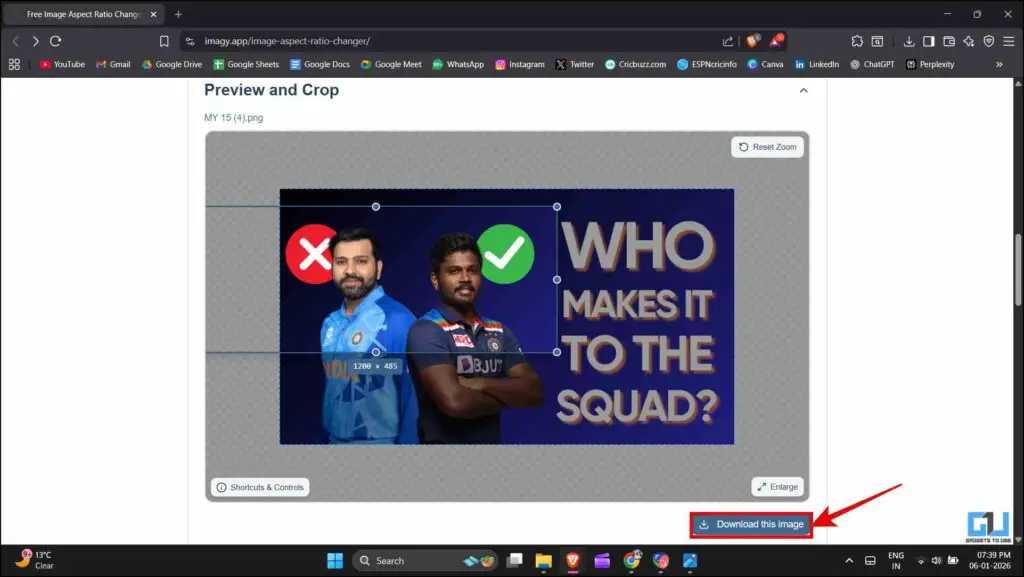
Now you’ll see that the image will get uploaded, and you will be able to post it.
Using safe dimensions while designing
This is not really a fix but a precaution that you can take. While designing, you can choose more commonly accepted aspect ratios, such as 16:9 or 1:1. All designing softwares and tools, like Adobe Photoshop or Canva, have options for custom and preset dimensions from which you can choose. Next time, you can use the custom dimension by figuring out what works by experimenting with tool mentioned above.
FAQs
Q. Will I face the same issue if I try posting from the mobile app?
Yes, the issue persists even when you try to upload the image through the mobile app. The error occurs regardless.
Q. Is there a permanent fix for this error?
As of now, there is no permanent fix for this issue unless YouTube itself modifies the validation algorithm.
Wrapping Up
This error is not about any mistake on the creator’s part. Instead, it’s YouTube not being fully transparent with its validation process and the proper limits. You can try the workarounds above and experiment to see what works for you. ‘Community posts’ as a feature has been there for a long time, and in recent times, it has been made accessible, as there is no particular subscriber count. YouTube should fix this and make image uploading more flexible in terms of dimensions and other parameters.
You may also like to read:
Have any questions related to our how-to guides, or anything in the world of technology? Check out our new GadgetsToUse AI Chatbot for free, powered by ChatGPT.
You can also follow us for instant tech news at Google News or for tips and tricks, smartphones & gadgets reviews, join the GadgetsToUse Telegram Group, or subscribe to the GadgetsToUse Youtube Channel for the latest review videos.
Was this article helpful?
YesNo