- Here, the webpage would open in the mobile orientation, and you can scroll to the part you would like to take a screenshot of.
- Open the webpage you would like to take a screenshot of in the mobile orientation, right-click on the webpage, and click Inspect.
- If you are someone who makes tech videos or blogs, or you want to showcase a mockup for your webpage on different displays, you can follow the instructions below.
You must have wondered how tech channels or websites showcase screenshots in iPhone or Android phone frames. This gives the videos and blogs a professional look. It looks like they have captured an image of the phone with that screen instead of a screenshot. That is not the case, as managing light and reflections makes capturing a clean image of the phone display somewhat challenging. Or you can use software like Photoshop. But that too is a hassle. There is a simple way to apply these frames to your screenshot.
Add Android or iPhone Frame on Screenshots
If you are someone who makes tech videos or blogs, or you want to showcase a mockup for your webpage on different displays, you can follow the instructions below. We tested methods across devices, including Android, iOS, Windows, and macOS.
Using Snapmod
If you are using an Android device, you can download the Snapmod App from Play Store.
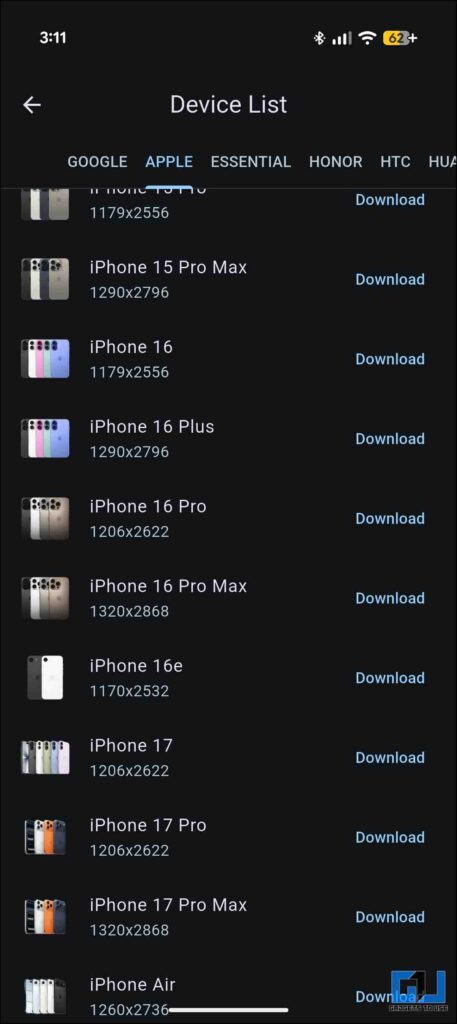
1. Once you launch the app, you would have to select a default device. This would be the device whose frame will be used for the screenshots you would like to give a frame. There are many options across Android and iOS phones.
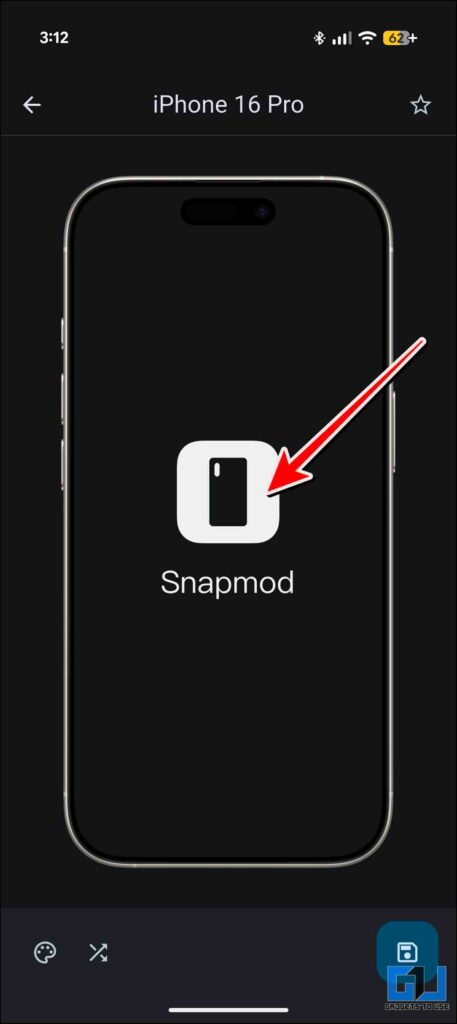
2. Tap in the middle once the frame is selected, and then select your screenshot. It would be placed in the frame, and you can adjust it according to your needs.
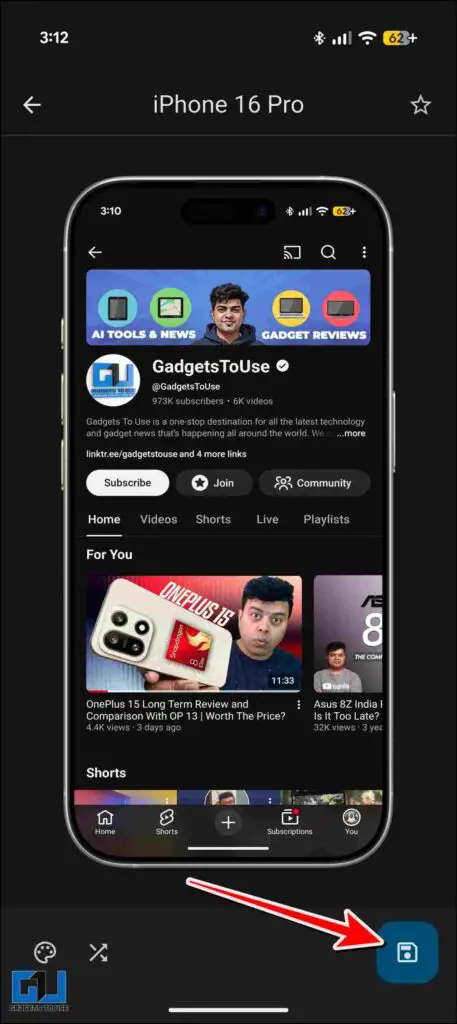
3. Now hit the save icon, and the framed screenshot will be saved in your gallery.
Using Devtools
You can also capture screenshots of webpages on your PC and give them a mobile frame, using built-in Devtools in the Google Chrome browser.
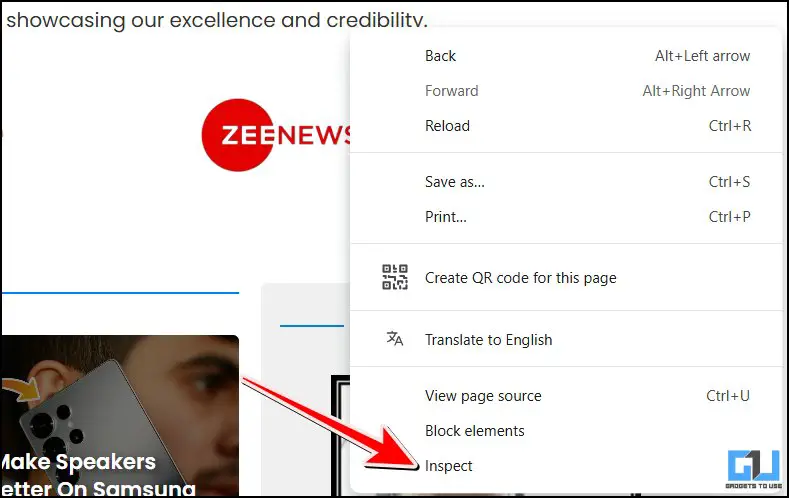
1. Open the webpage you would like to take a screenshot of in the mobile orientation, right-click on the webpage, and click Inspect.
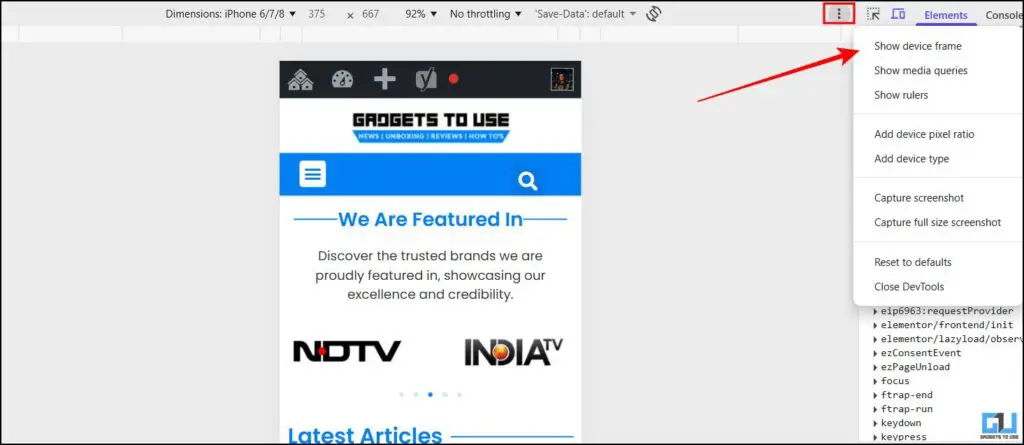
2. Now press Ctrl + Shift + M (or Cmd + Shift + M for Mac) to open the devtools options. Here, the webpage would open in the mobile orientation, and you can scroll to the part you would like to take a screenshot of. Now, click these three dots and click on ‘Show device frame’.
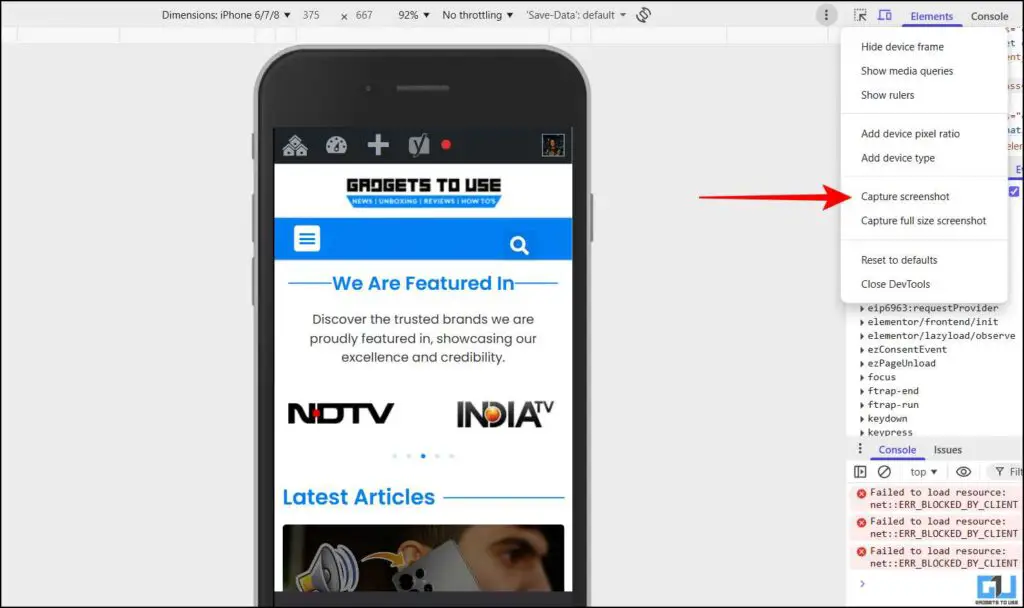
3. Once this is done, again click the 3 dots and click on ‘Capture screenshot’. You will be able to download this now to your PC
Using PopFrame
You can install the PopFrame app from the App Store if you are an iPhone user.
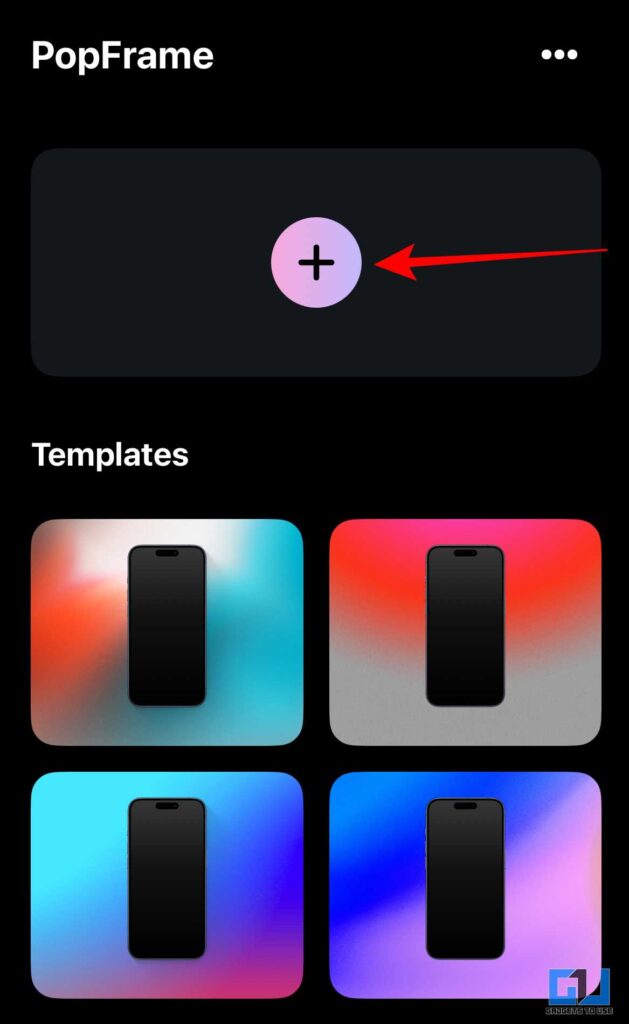
1. Launch the app, once installed, and then either you can select the templates given or tap the ‘+’ icon. Now select the screenshot you want to give a frame to.
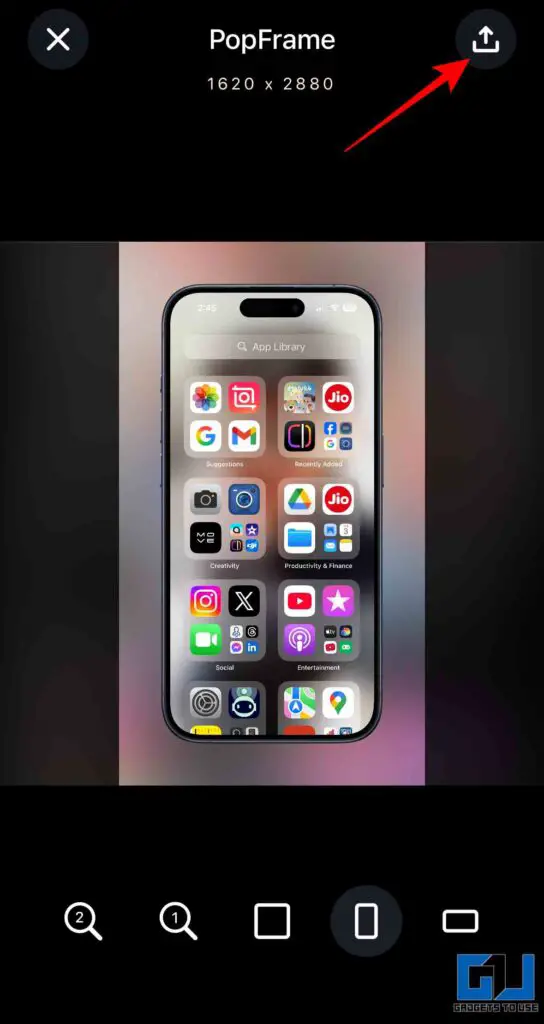
2. Here you will find many options to customise the image as you would like. Select the dimensions of your image and hit the export icon.
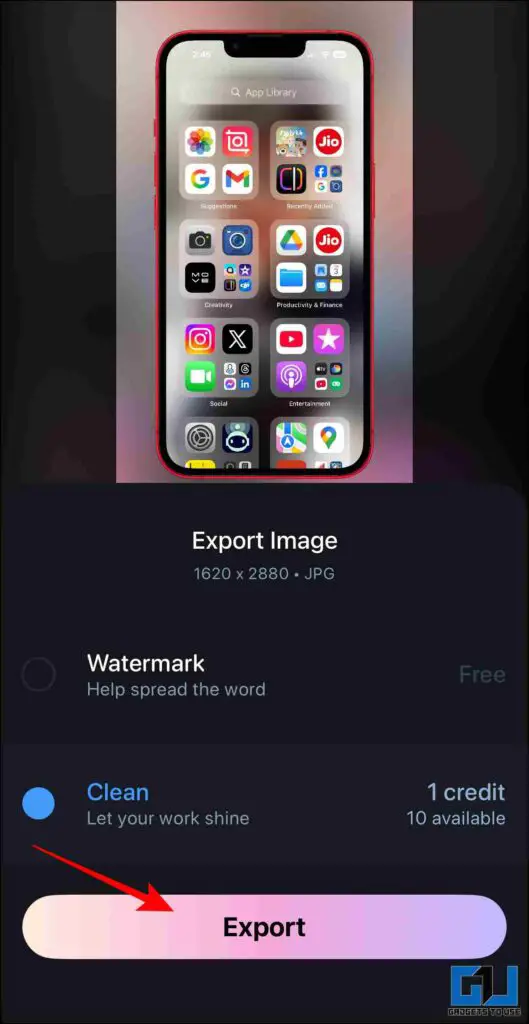
3. Here, you can select whether you would like to export the free version (with watermark) or the clean version, which would cost 1 credit. You would get 10 free credits when you first use the app.
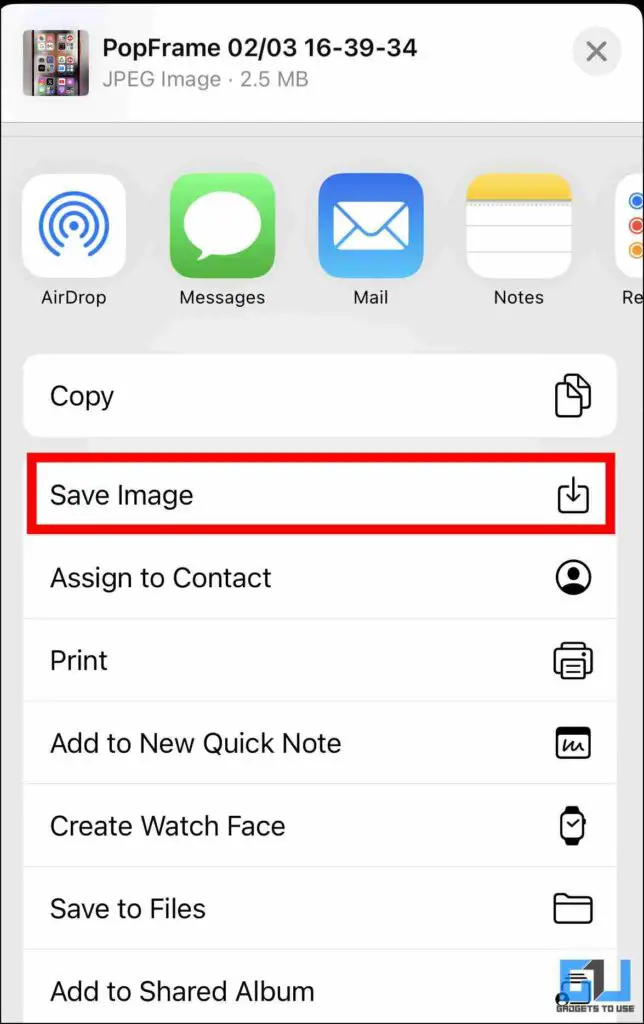
4. You can save the created image.
Using Built-in Frames on iPhone
There is one more method that is native to the iPhone.
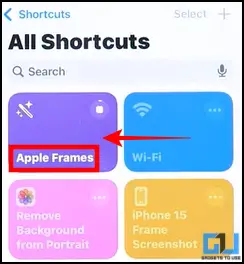
1. This is called the ‘Apple Frames’ that you can find in the Shortcuts app. Once it is activated, select the image you will add the frame to.
2. This will automatically detect the device you are using, whose frame you can add to the screenshot. You can also choose another iPhone frame if you want.
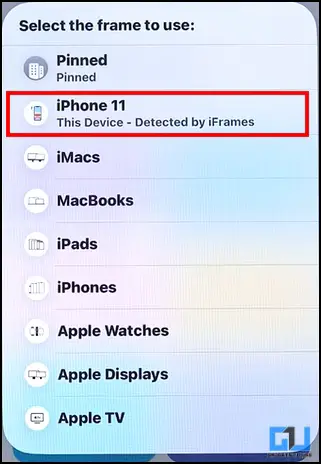
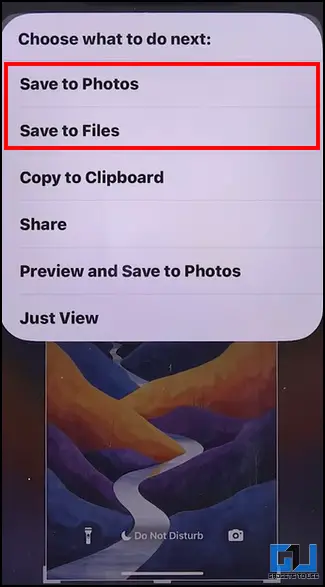
3. Once this is done, save the created image to your desired source, and you will be able to access it.
FAQs
Q. Does screens qualoity reduce after adding a frame?
Generally, the apps do maintain image quality. Additionally, ensure you export the final output at the highest quality whenever available.
Q. Can I put these frames on other images apart from screenshots?
Yes, you can place these frames on any image as long as it is in the correct orientation and dimensions. This is particularly useful for people who want to showcase app UI designs.
Wrapping Up
Adding phone frames to your screenshots gives a polished look that can be a visual upgrade to your content. And you can easily do this by using these simple methods. As mentioned above, apart from bloggers and content creators, this is also useful for UI designers. They can showcase the apps in a professional manner.
You may also like to read:
Have any questions related to our how-to guides, or anything in the world of technology? Check out our new GadgetsToUse AI Chatbot for free, powered by ChatGPT.
You can also follow us for instant tech news at Google News or for tips and tricks, smartphones & gadgets reviews, join the GadgetsToUse Telegram Group, or subscribe to the GadgetsToUse Youtube Channel for the latest review videos.
Was this article helpful?
YesNo