- Now you can use the cursor to brush over the object you would like to remove, and you can also adjust the brush size.
- Whether you want to add graphics, text, or remove the background from an image to make a cutout of it.
- Then, under step two, you have to brush the area on the image where you have to insert the object.
Today’s Instagram creators not only rely on reels as content but also on carousel posts. In recent times, the Instagram algorithm has been pushing such posts on the reels tab when you add music to them. But an ordinary post might not grab the viewer’s attention. You can make a simple post much more immersive by adding text, animation, or regenerating the background to make it more exciting. Most creators work independently, and designing these posts can be a tedious task for them. If you are an Instagram Creator looking to enhance your content, then Adobe Creative Cloud Express, a cloud-based media creation application, could be the tool you need.
Whether you want to add graphics, text, or remove the background from an image to make a cutout of it. Adobe Express is a good alternative to Canva, with almost all its features. While both tools are beginner-friendly, Adobe Express offers a creative blend of editing tools which are highly beneficial for content creators to curate their ideas into reality.
Object Remover
Sometimes an almost perfect image gets ruined by an object or a person, which, as they like to call it, “gets photobombed”. This is where you can use the ‘Remove Object’ Tool.
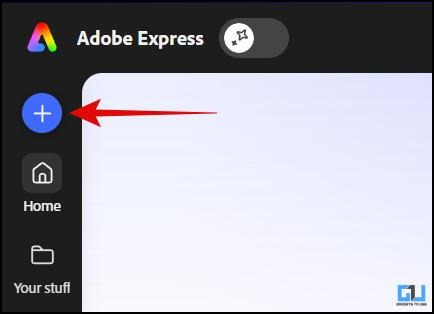
1. On the Adobe Express homepage, click the plus icon, then click Upload media to upload the image you want to edit.
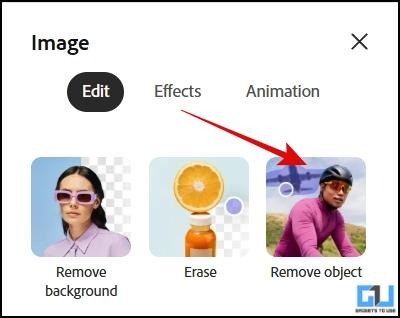
2. On the left-hand side, you would find the ‘Remove Object’ tool under the edit tab. Click that.
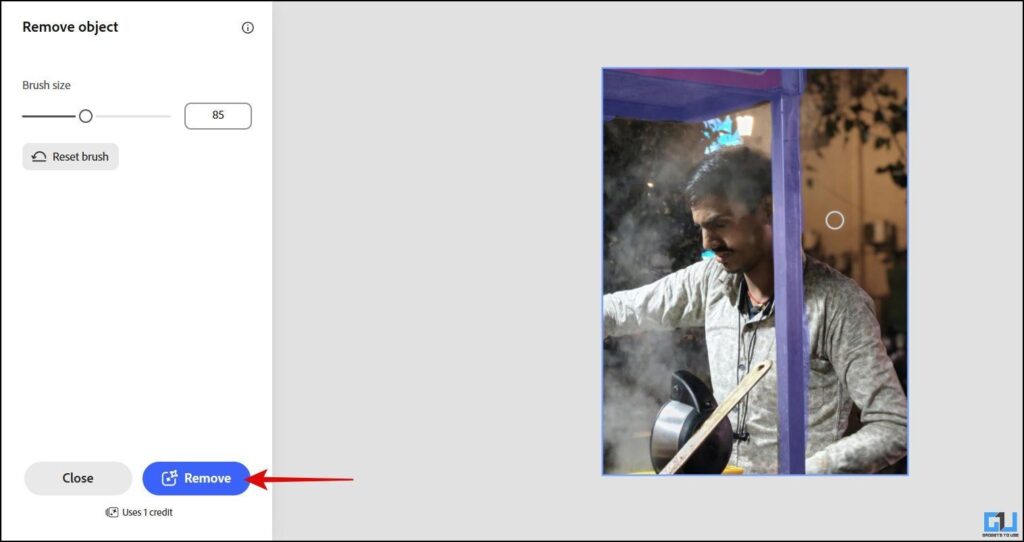
3. Now you can use the cursor to brush over the object you would like to remove, and you can also adjust the brush size. Now hit Remove.
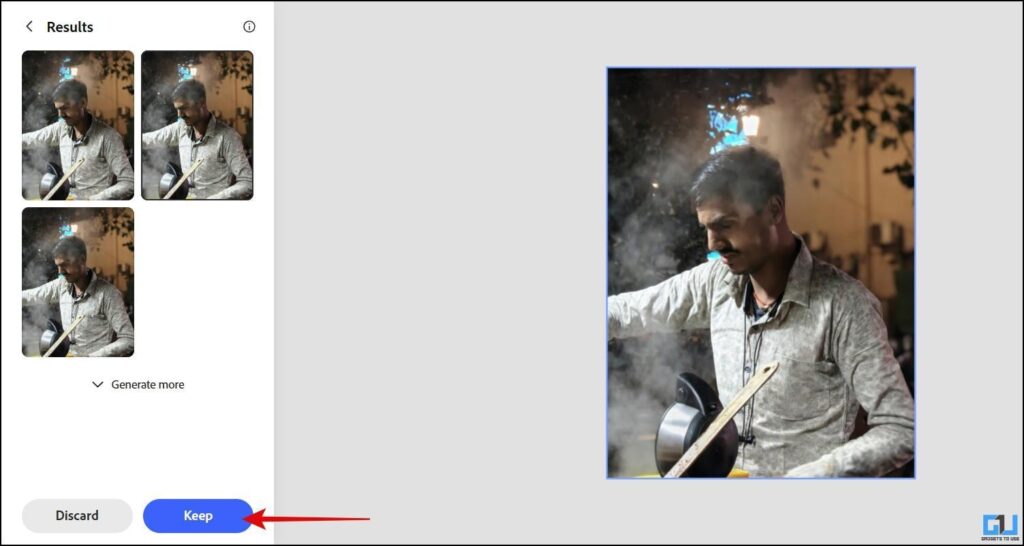
4. After some processing, the object would be removed, and you would be presented with options to choose from. You can keep what you find most suitable.
Background Remover
Adobe Express offers a one-click background remover that accurately detects the main subject from the background. The best part is that it keeps the resolution the same even after removing the objects. This helps to maintain the details in your high-res images and get a transparent background. If you run an e-commerce business, then this tool offers a quick way to generate fast cutouts for your listings in high quality.
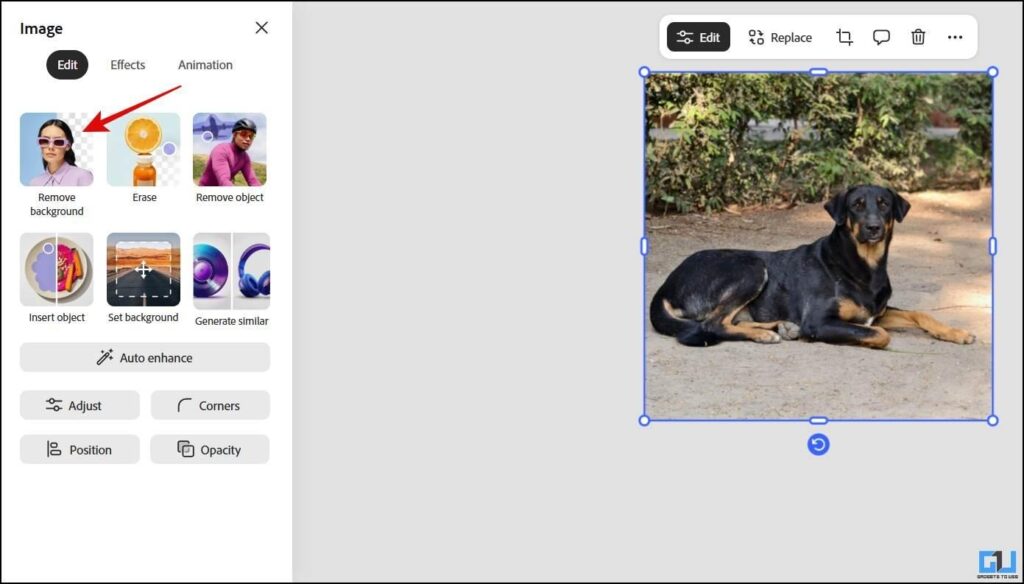
1. After uploading the image, click the ‘Remove Background’ option in the edit tab.
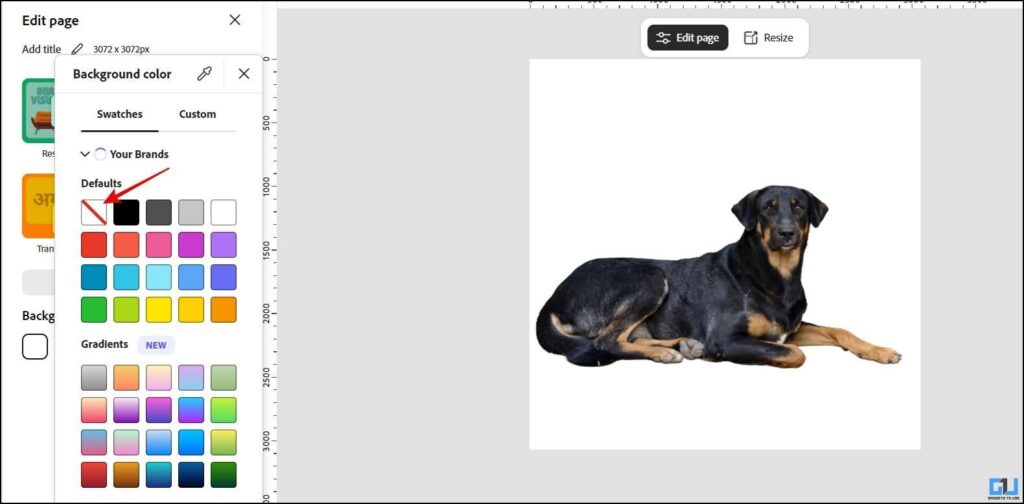
2. Only the main subject would be left, and you would get a clear background. To download the transparent image, deselect the image and you will find an option to change the background colour. Here, select No-fill.
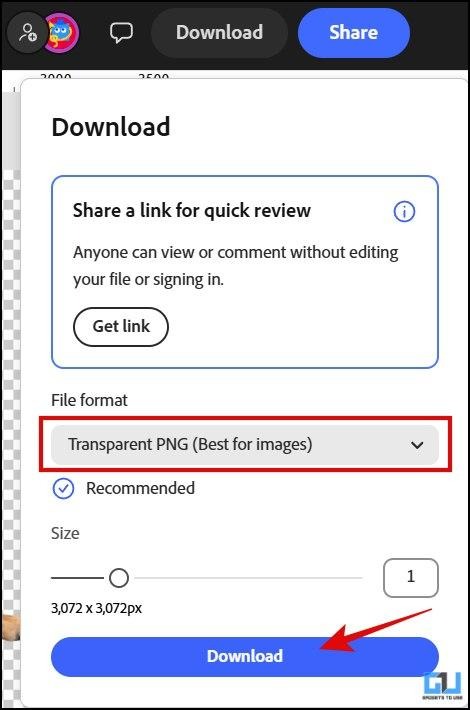
3. Then download the image in the ‘PNG’ format. The transparent image would be downloaded.
Insert Object
Apart from removing an object, you can also add an image to enhance your image.
1. Upload a new image or continue with an already uploaded image. Select ‘Insert Object’ from the edit tab.
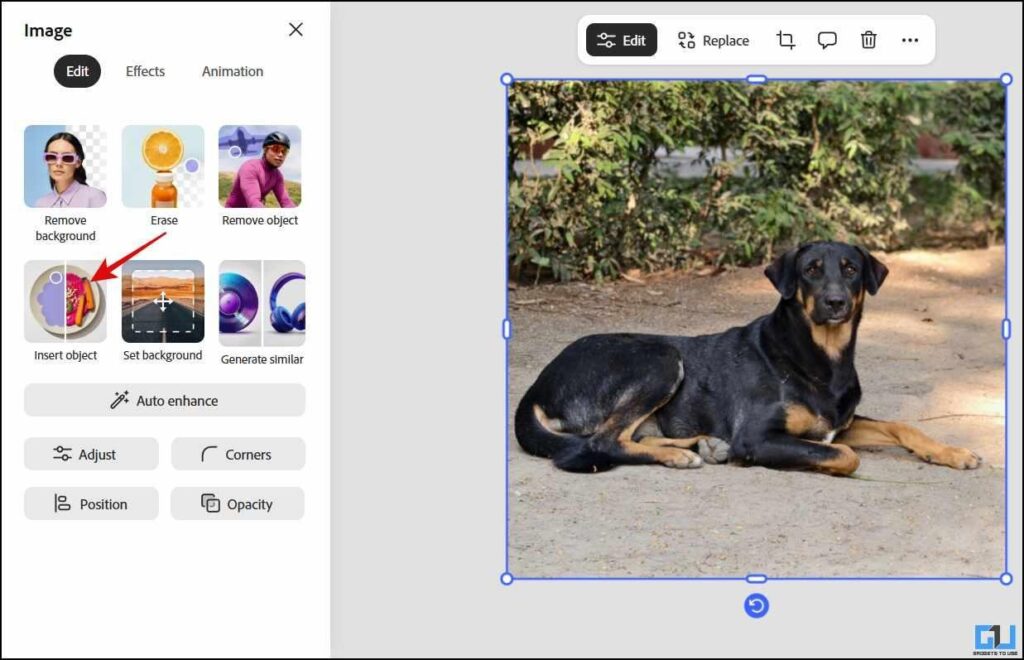
2. Here, you would be prompted to proceed through two steps. First, briefly describe what you want to insert. Then, under step two, you have to brush the area on the image where you have to insert the object. Now hit ‘Insert’.
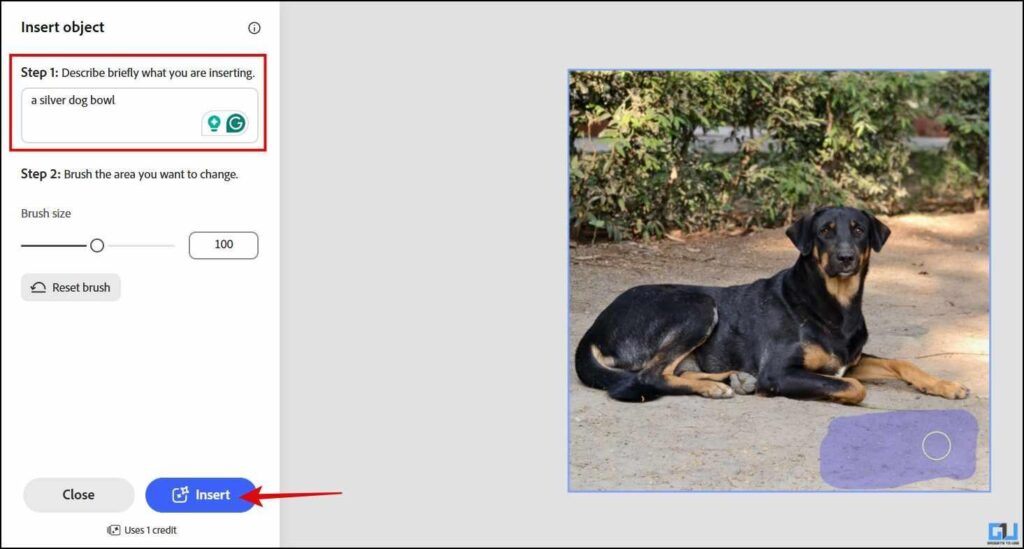
3. Wait for the processing to complete, after which you will be able to see the results. You would get multiple options to choose from, and you can keep the result you like.
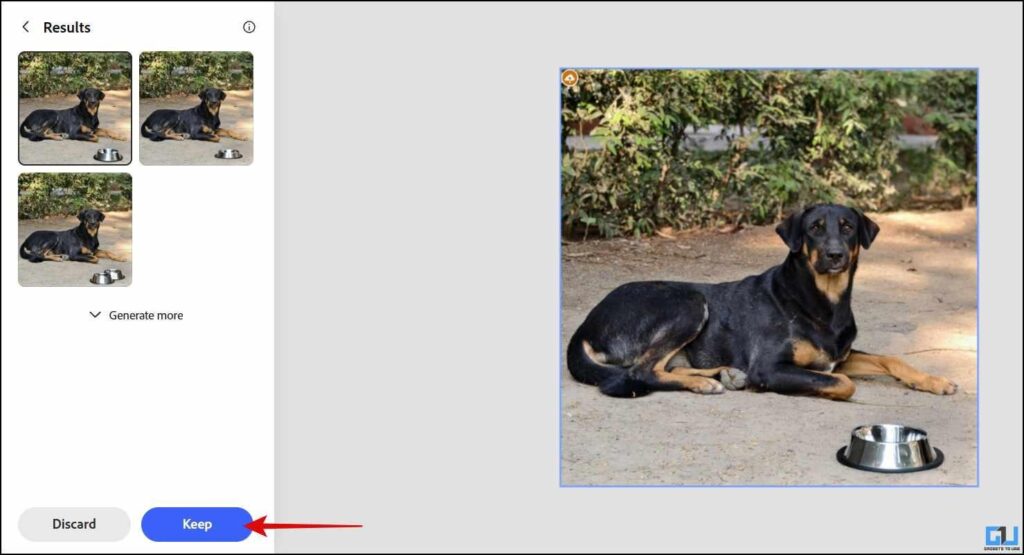
The inserted object blends well with the image, with its edges and accurate lighting.
Generative AI
If you want to add generated images, videos, templates, or even text effects to your designs, you can do that through the Generative AI feature. Let’s say you want to showcase your products as an apparel outlet without having to hire models for a photoshoot. You can generate images for your social media platforms like these.
1. In the left-hand side bar, hover the cursor over ‘Add Content’, and now click on the ‘Generative AI’ option.
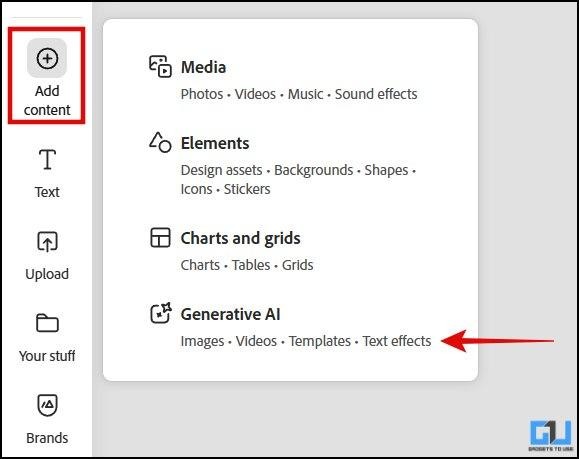
2. As mentioned above, you can select to generate between images, videos, templates, or text effects. Select image and now click ‘Generate Image’ and choose the aspect ratio that you want.
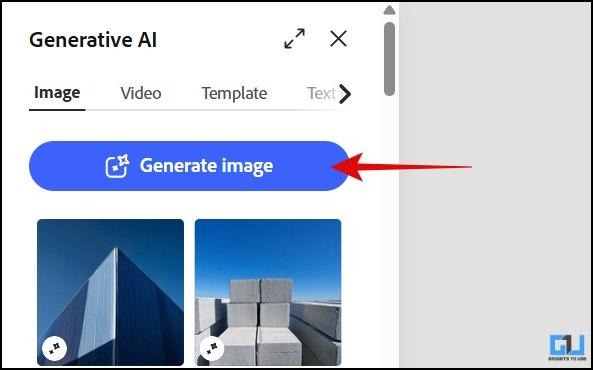
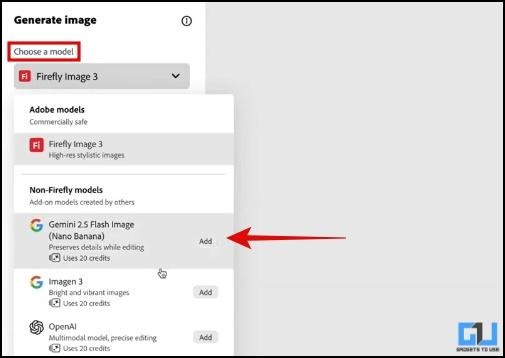
3. Now choose the ‘Gemini 2.5 Flash Image’ as your model.
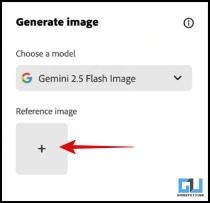
4. Now, under the ‘Reference Image’, add a well-lit image in which the clothing piece is clearly visible.
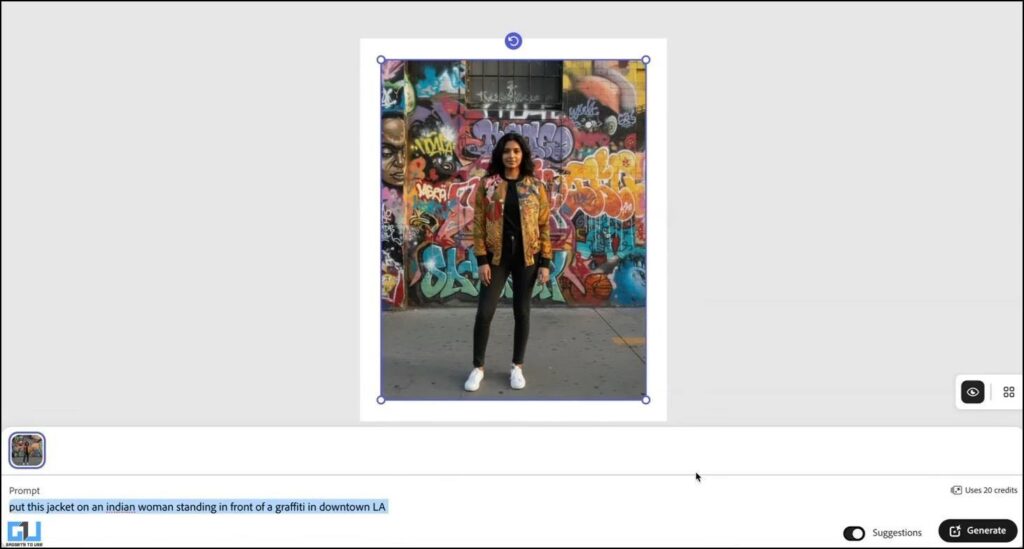
5. Describe how you would want your image to look in the prompt box and hit ‘Generate’.

6. The image will be generated, which you can further edit, or if you want other versions, you can provide additional prompts.
Verdict:
The features tested above show that Adobe has sorted all your design needs into a single tool.
- The image background remover works seamlessly and happens with just one click.
- The other thing that caught my attention was the options you can choose from when you add an object to the image. The added object does not feel out of place and syncs with the image, including its edges and lighting, so it feels as if the object was already there.
- The object remover, too, is decent, especially when handling complex images such as the one we used. The beam was in the middle of the image and over the main subject. In spite of that, the beam was removed as if it wasn’t there.
- The Gemini integration in Generative AI feels like a game-changer. This is because you can generate images, enhance them by adding graphics or texts, and further use them in other designs, all on a single platform.
FAQs
Q. Can I use Adobe Express on my Mobile?
Yes, Adobe Express is available as a mobile app on both Android and iOS. This makes it convenient for creators to create and edit posts while they are on the go.
Q. Can I use Adobe Express as a beginner?
Yes, Adobe Express is easy to use, even if you are a beginner. There is also a ‘Learn’ feature at the top taskbar, which guides you through the various tools and also helps you discover new or recently released features.
Q. Does Adobe Express support collaboration on projects?
Yes, you can share your designs and collaborate on them with your teammates. Just share the link of the project, and if you give them access, they would also be able to contribute to the project.
Have any questions related to our how-to guides, or anything in the world of technology? Check out our new GadgetsToUse AI Chatbot for free, powered by ChatGPT.
You can also follow us for instant tech news at Google News or for tips and tricks, smartphones & gadgets reviews, join the GadgetsToUse Telegram Group, or subscribe to the GadgetsToUse Youtube Channel for the latest review videos.
⬇️ GadgetsToUse Site Search ⬇️
You can find anything on our website, inlcuding tech how to, solution or reviews using google site search box below.
Was this article helpful?
YesNo