
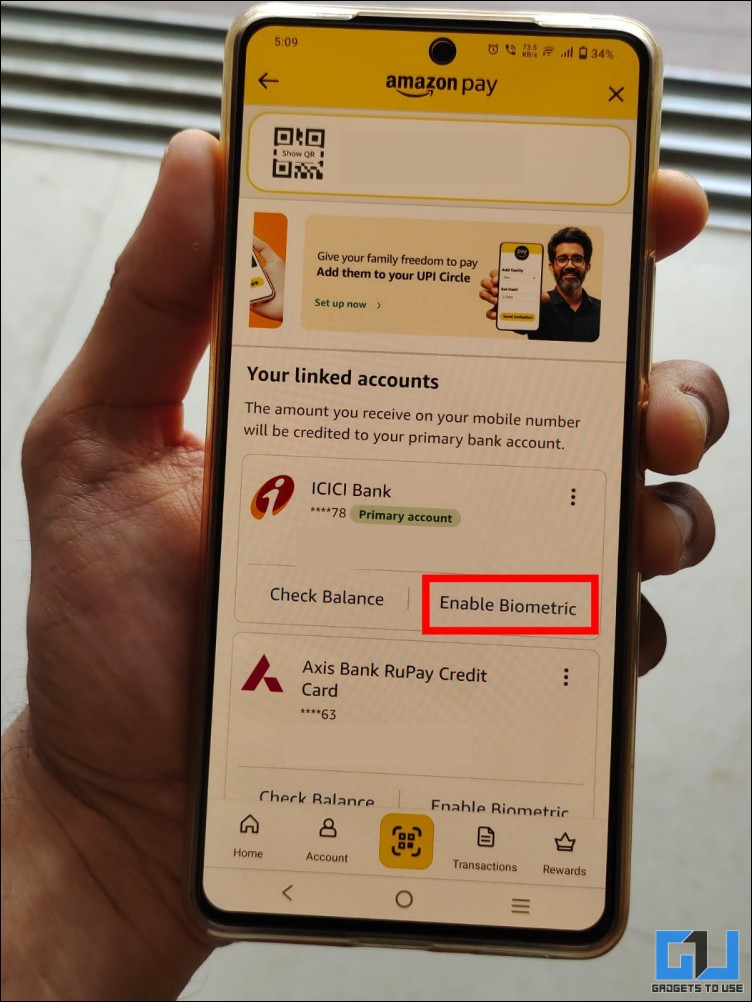
- Tap on the Enable Biometric button on the account on which you want to enable the setting.
- Once you complete these steps, you can now make UPI payments in PhonePe by using your fingerprint or Face ID.
- Here’s a step-by-step guide on how you can enable biometric payments across various UPI apps.
The National Payments Corporation of India (NPCI) has started rolling out biometric-based UPI payments, eliminating the need for entering your UPI PIN each time. This feature is now available on PhonePe, Paytm, Amazon Pay UPI, and other apps. On Android devices, you can now easily complete UPI transactions by using your fingerprint, while iPhones can use Face ID. Here’s a step-by-step guide on how you can enable biometric payments across various UPI apps.
Enable Fingerprint UPI Payments in PhonePe
PhonePe is currently pushing a phased rollout of fingerprint-based UPI payments to its users. Ensure that you have updated your app to the latest version on both Android and iOS, and then follow these steps:
1. Open the PhonePe and tap on your profile icon in the top left corner.
2. Select the Manage button, and scroll down to find the Biometric Pay option.
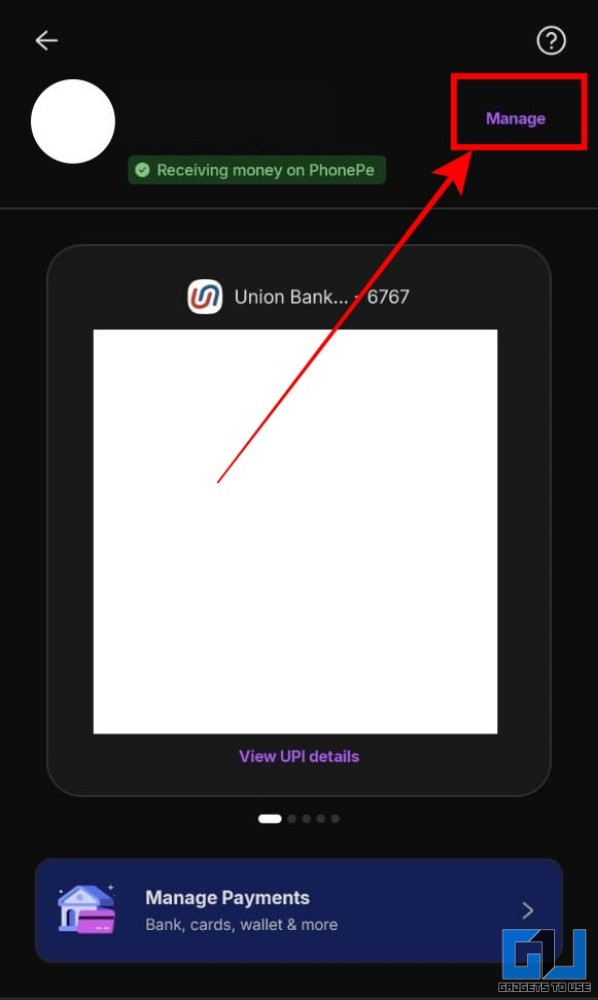
3. Select the bank account on which you wish to enable biometric payments.
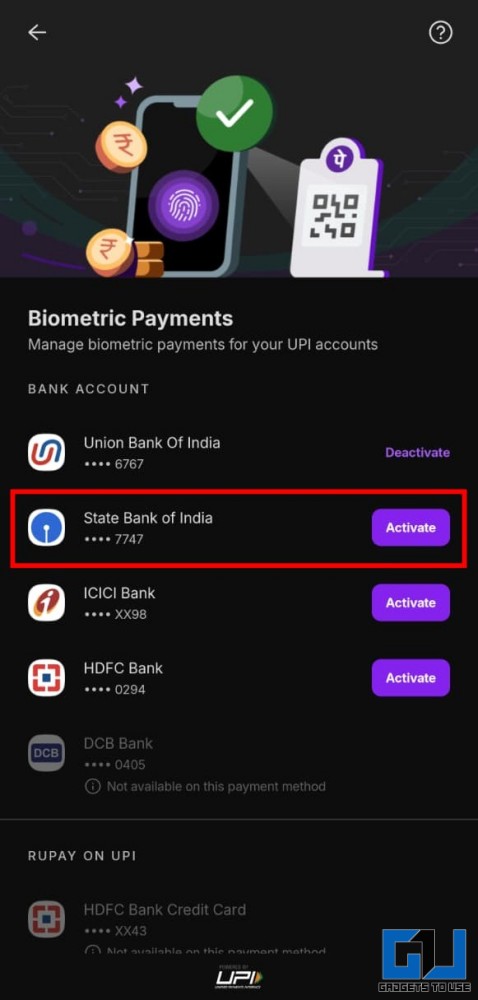
4. You will be asked to enter your UPI PIN to confirm the setting.
Once you complete these steps, you can now make UPI payments in PhonePe by using your fingerprint or Face ID.
Use Fingerprint UPI Payments in Paytm
Paytm was among the first apps to bring support for biometric UPI payments. The feature is now available to most users with the latest version. Here’s how you can access and enable it:
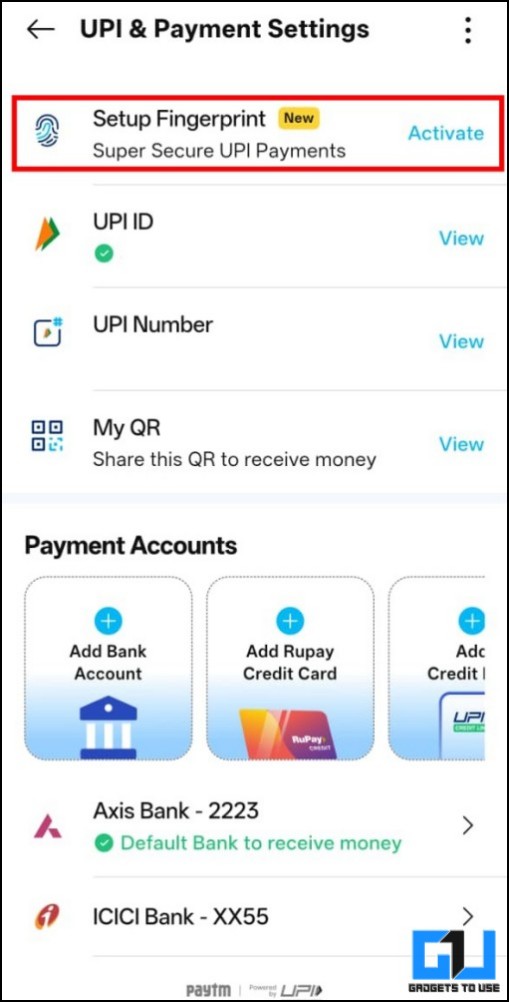
1. Open the Paytm app, and swipe left to open UPI and Payment Settings.
2. Select the Setup Fingerprint option and tap on Activate.
3. Choose the bank account on which you want to enable fingerprint or FaceID payments.
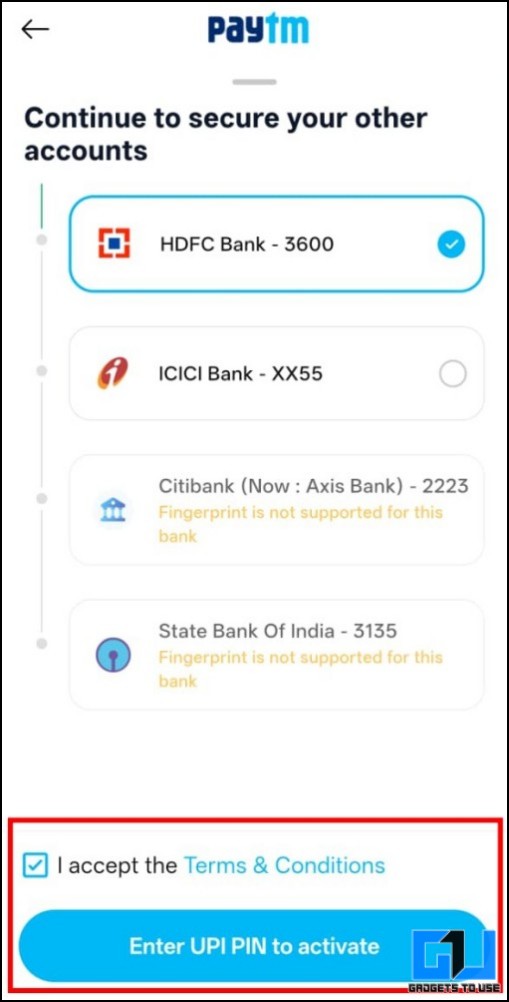
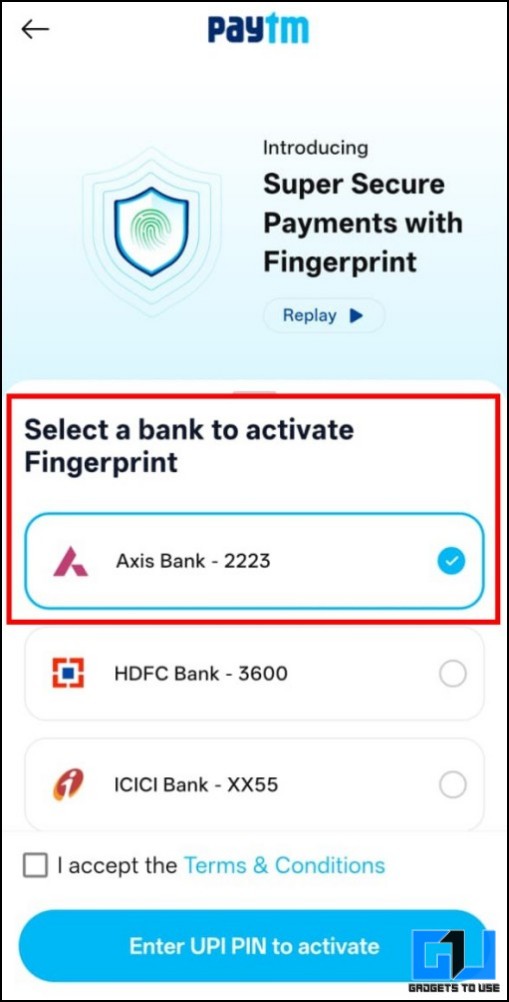
4. Enter your UPI PIN to confirm the setting.
Paytm currently offers broader support for both bank accounts and Rupay credit cards for biometric-based payments. If you are someone who uses a mix of both for your daily payments, then you should consider using Paytm.
Enable Fingerprint UPI Payments in Amazon Pay UPI
While Amazon Pay UPI is not as popular as its counterparts, the platform is super quick to implement new features from NPCI. It has managed to roll out biometric payments before Google Pay. Here’s how you can enable it:
1. Open the Amazon app and navigate to the Amazon Pay UPI section.
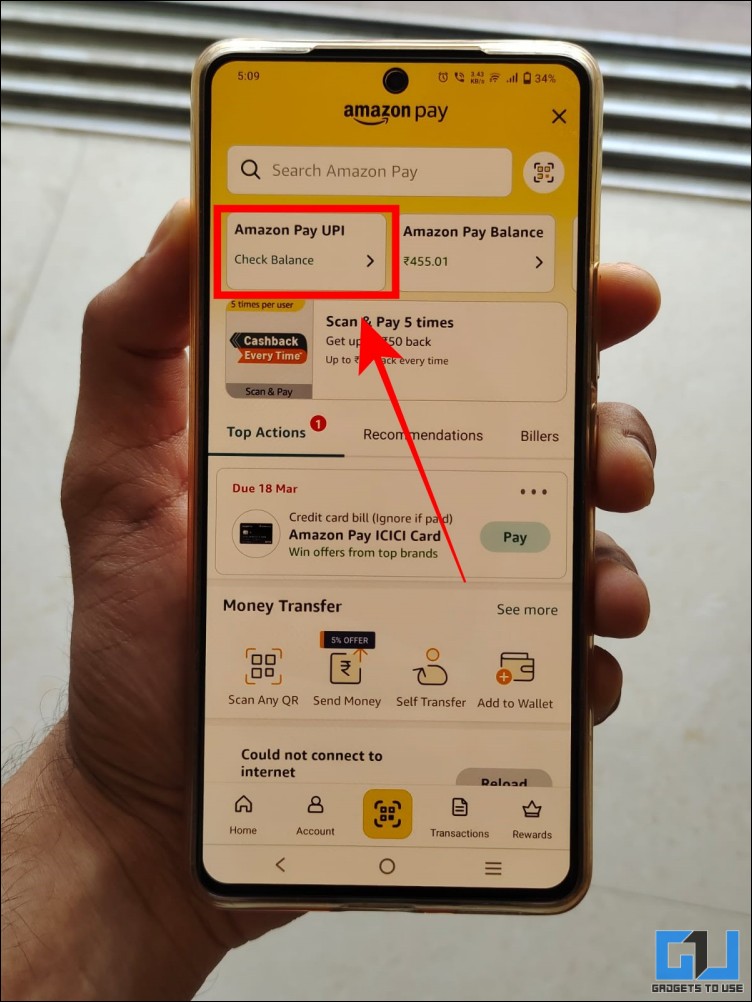
2. Tap on the Enable Biometric button on the account on which you want to enable the setting.
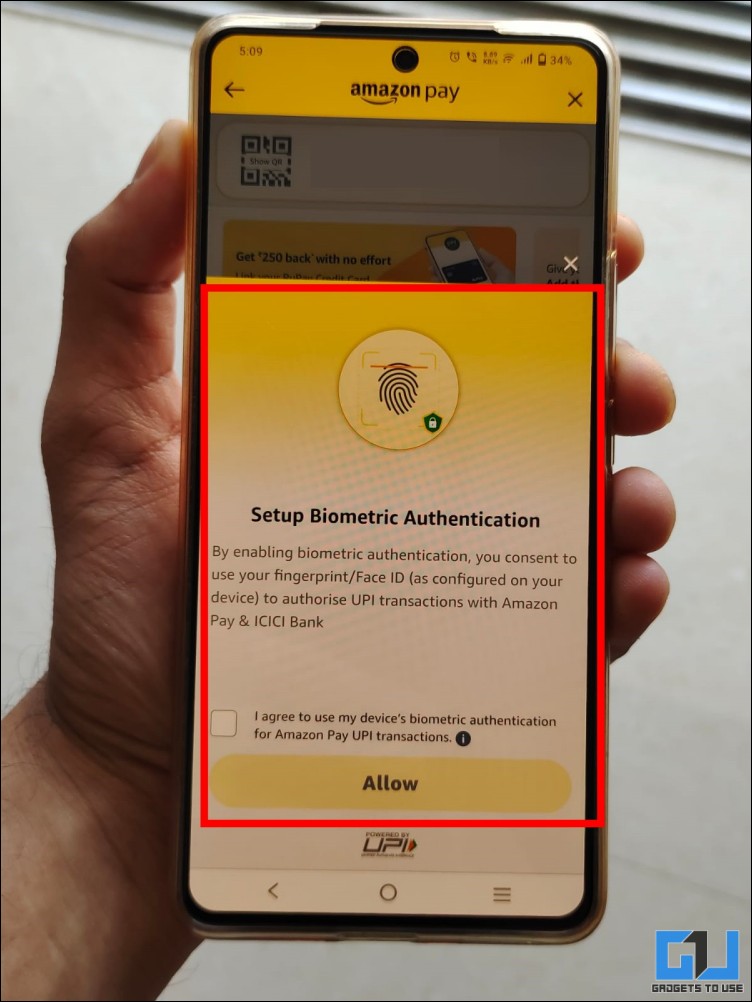
3. Enter your UPI PIN to complete the process.
Rules and Limits of Fingerprint UPI Payments
Fingerprint and biometric-based UPI payments have a transaction limit for safety reasons. It’s similar to contactless payments in cards. Here’s everything that you should know:
- Biometric payments are supported only for transactions up to Rs 5000.
- The Rs 5000 is a cumulative daily limit, i.e., it can be used in a single or multiple transactions.
Beyond this limit, you will have to enter your UPI PIN. - You can also use the biometric method to check your balance.
Fingerprint UPI Option Not Found
PhonePe, Paytm, and Amazon Pay UPI are slowly rolling out fingerprint and biometric payments to their users. Hence, some users may not find this option even after updating the app to the latest version. However, there is no solution for this, and you will have to wait until you receive the feature officially.
Users should NOT try to install APKs manually to get this feature, as it poses a security risk for your banking system. Remember that a new feature is not worth risking your hard-earned money.
Bank Does Not Support Fingerprint UPI
Currently, all major tier-1 banks like HDFC, ICICI, Axis, Bank of Baroda, and others have rolled out support for fingerprint and biometric-based UPI payments. However, smaller institutions like small finance banks and co-operative banks are still in the process of implementing it.
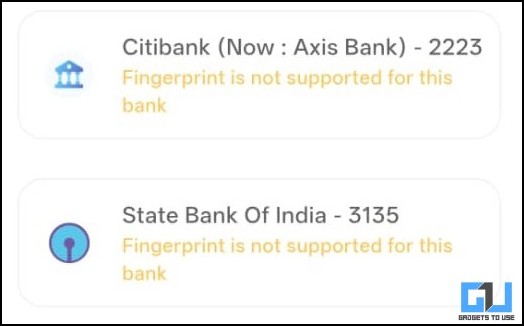
Hence, if your UPI app shows that fingerprint payments are not supported for your account, you will have to wait until your bank rolls it out. Note that shifting to a different UPI app will not solve this issue.
Note: This sometimes also depends on the app. For example, we were able to enable fingerprint UPI in SBI in PhonePe, but Paytm did not support it.
FAQs
Q. What is the transaction limit for fingerprint UPI payments?
The transaction limit for fingerprint and Face ID UPI payments is Rs 5000 which resets daily.
Q. Does iPhone support biometric UPI payments?
Yes, biometric-based UPI payments are supported on all iPhones using Face ID.
Q. Which apps support fingerprint UPI payments?
Currently, fingerprint-based UPI payments are available in PhonePe, Paytm, and Amazon Pay UPI. Support for more apps will be rolled out soon, as per NPCI.
Wrapping Up
Biometric-based UPI payments are an excellent way to complete transactions without having to enter the UPI PIN. It is more versatile compared to UPI Lite, where users are required to set up a wallet and maintain a balance separately. If you are someone who makes small-value transactions frequently, then enabling fingerprint UPI is a safe, secure, and quick way to make your payments.
You may also like to read:
Have any questions related to our how-to guides, or anything in the world of technology? Check out our new GadgetsToUse AI Chatbot for free, powered by ChatGPT.
You can also follow us for instant tech news at Google News or for tips and tricks, smartphones & gadgets reviews, join the GadgetsToUse Telegram Group, or subscribe to the GadgetsToUse Youtube Channel for the latest review videos.
⬇️ GadgetsToUse Site Search ⬇️
You can find anything on our website, inlcuding tech how to, solution or reviews using google site search box below.
Was this article helpful?
YesNo