- And if the link is shared before completing the process, it would be invalid, and the creator would not be able comply with the request.
- After you select the channel you want to collaborate with, you will get an option to create an invite link.
- YouTube claims that a notification is also sent to the channel invited to the collaboration.
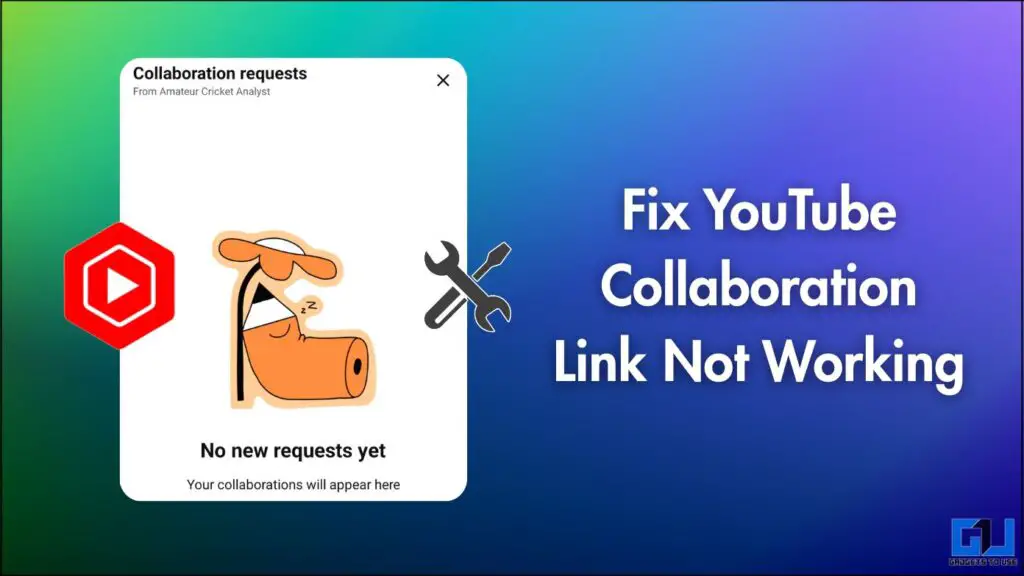
In recent times, YouTube has been trying to position itself more like a conventional social media platform rather than just a video-sharing platform. Owing to this, they have introduced a collaboration feature as we have in Instagram. This allows multiple creators to be credited on a single video. It is a great feature for creators exploring co-creation with fellow creators. However, some users have reported issues when using this feature. Some are not receiving collab requests, or the collab request link is not working. Let’s see what the real issue is and how we can fix it.
Why Creators Are Not Getting Collab Requests
In most cases, this problem is not because of any server issue or bug. Instead, the problem stems from missing some steps while creating the request. The collab request is completed before the process is completed. And if the link is shared before completing the process, it would be invalid, and the creator would not be able comply with the request.
How to Ensure That the Collaboration Invite Link Is Valid
- When inviting another creator to collaborate, make sure you select the correct channel. Sometimes, when channels have similar names, a request might be sent to the wrong channel.
- After you select the channel you want to collaborate with, you will get an option to create an invite link. There is one thing you need to do, once the link is created and you have copied it. Before sharing the link, go back to the ‘Edit video’ menu and tap ‘Save’. Once you have tapped Save, wait for YouTube to display the ‘Edits saved’ pop-up.
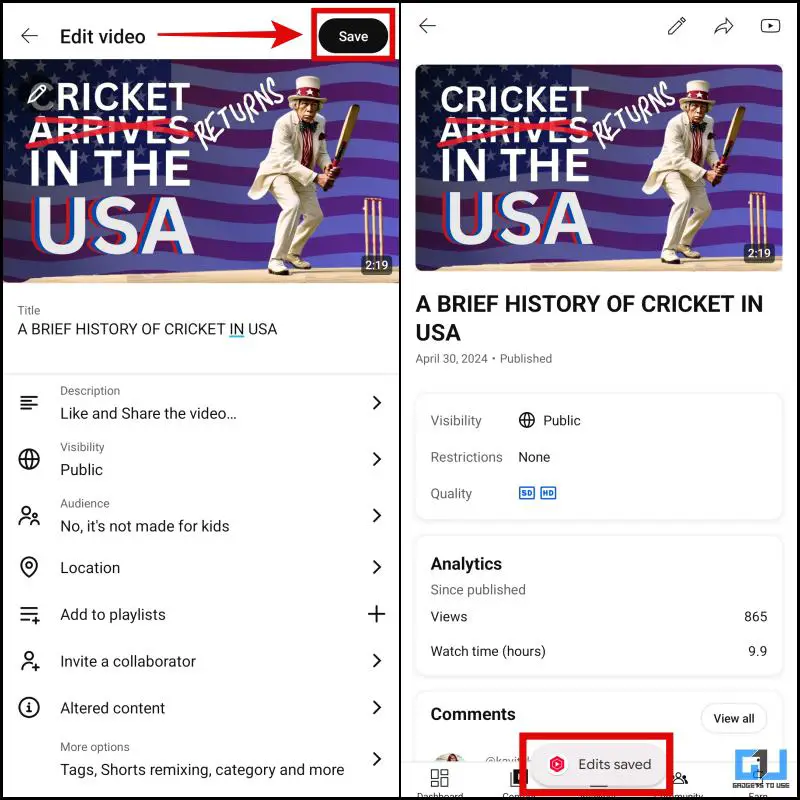
Now you can share the link with the collaborator, and it should be valid.
How to Accept a YouTube Collaboration Request
- Once you are invited to a video collab, the collaborator will send you an invite link.
- Make sure that the channel that is invited is logged into YouTube Studio. Open the link and review the content and the collaboration terms. If everything is good to go, tap the accept button, and you will then receive a confirmation of the collaboration.
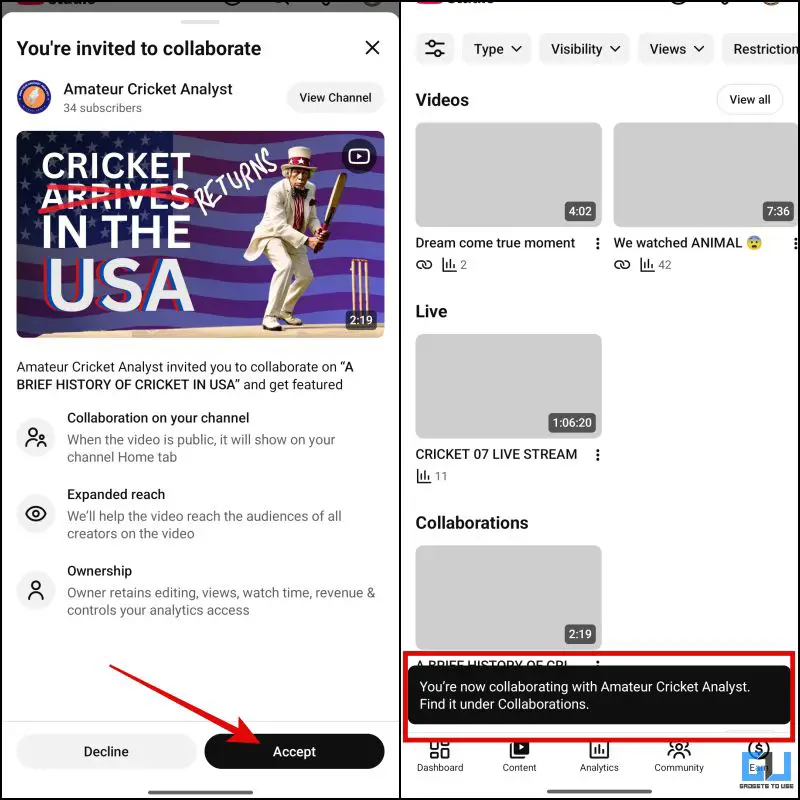
You can review all your collaborations in the ‘Collaboration’ section of the Content menu.
FAQs
Q. Can I withdraw from a collaboration after I have accepted it?
Yes, you can withdraw from a collaboration after you accept it. In the ‘collaboration’ section, you will get an option of ‘manage collaboration’ through which you can withdraw from the collaboration.
Q. Is there a subscriber count requirement to use this feature?
No, as of now, this feature is accessible to channels with any subscriber count. Although it might not be available on restricted channels.
Wrapping Up
The collaboration feature is useful and can be utilized reliably if both creators ensure that the steps given above are followed. The UI is such that anyone can miss this detail of tapping the ‘Save’ button after creating the link. You might close the app while sharing the link, so the edit might not get saved. YouTube claims that a notification is also sent to the channel invited to the collaboration. However, in my testing, I was not able to see any notification regarding the invite. So, it’s better to share the invite link with the other channel once you invite them to collaborate.
You may also like to read:
Have any questions related to our how-to guides, or anything in the world of technology? Check out our new GadgetsToUse AI Chatbot for free, powered by ChatGPT.
You can also follow us for instant tech news at Google News or for tips and tricks, smartphones & gadgets reviews, join the GadgetsToUse Telegram Group, or subscribe to the GadgetsToUse Youtube Channel for the latest review videos.
Was this article helpful?
YesNo